Entering a product key to activate Windows 10 or 11
Step-by-step manual code entry on Windows 10 and 11, plus the caveats and the problems most readers run into.
Key-based Windows activation
Manual entry of the 25-character code is the most universal route. It fits home-built computers, boxes labelled with a COA sticker and edition switches. Machines that already ran activated Windows on identical parts need nothing typed: their hardware entitlement handles it.
No licence and no plans to buy one?
Entering a key will not help then. A free route through an activator exists.
Screens below: the Settings dialogs, a standalone slui attempt and command templates. We never typed a real code and captured no successful result. On our Windows 11 test slui failed to open the entry box, so stick with Settings.
1
From Settings
Windows 10
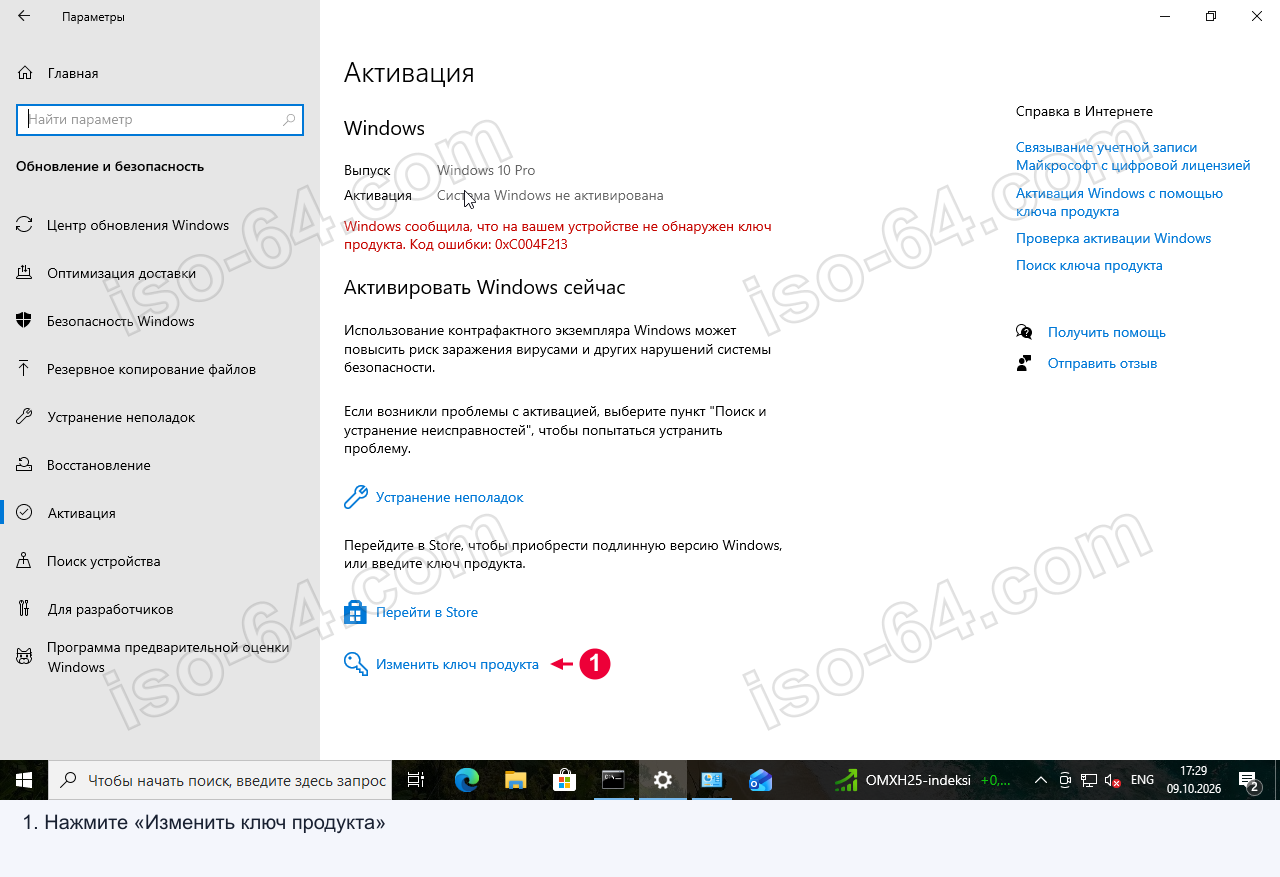
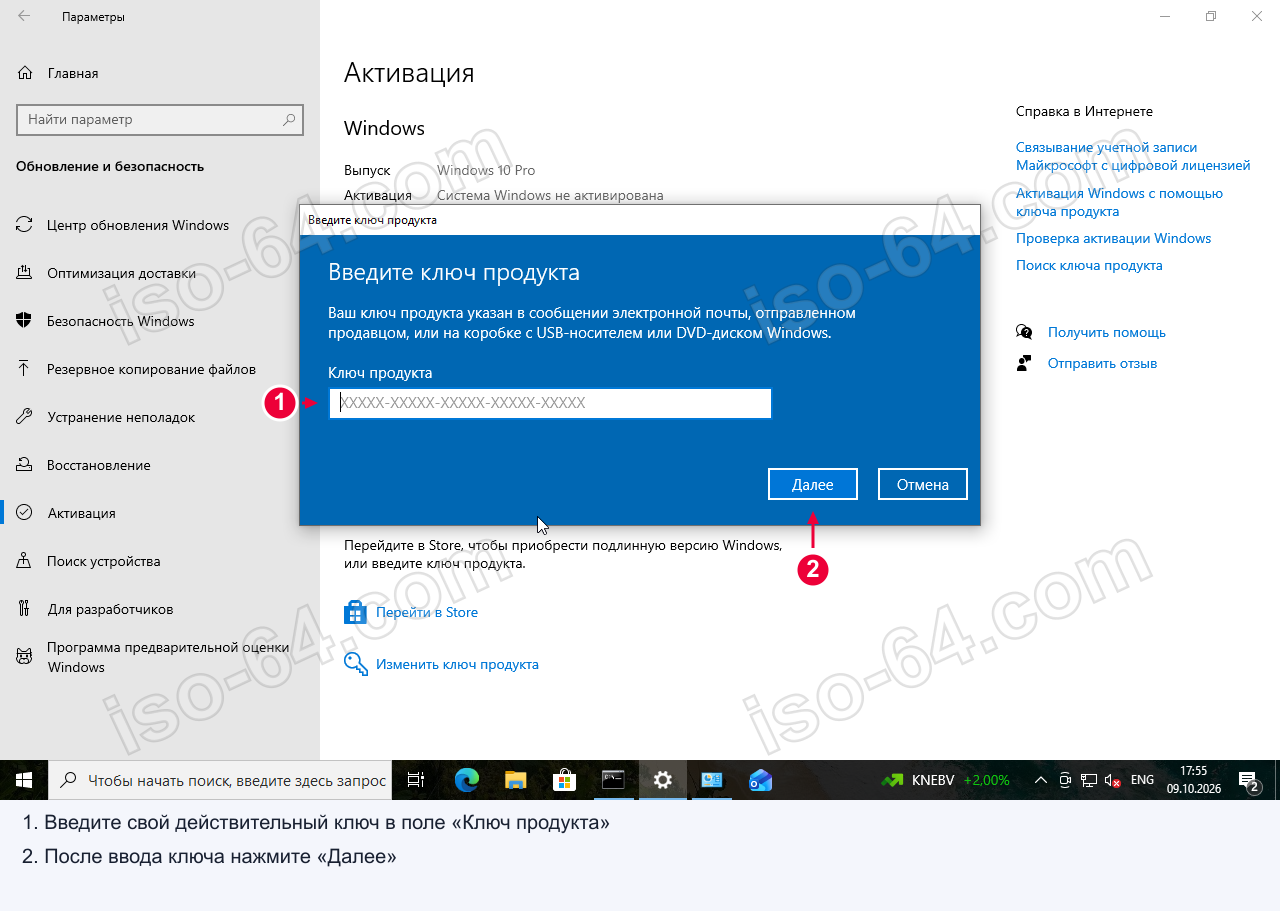
Windows 10: Start, then Settings, then «Update & Security», the Activation tab and its link to change the code. The dialog that pops up has a single field - paste or type your 25 characters there and confirm with «Next». Our capture leaves it blank.
Activation tab of an unactivated 10 Pro, code-change link visible. Error 0xC004F213.Entry dialog on 10, field still blank. Put your genuine code there and continue; we left it empty.
Windows 11
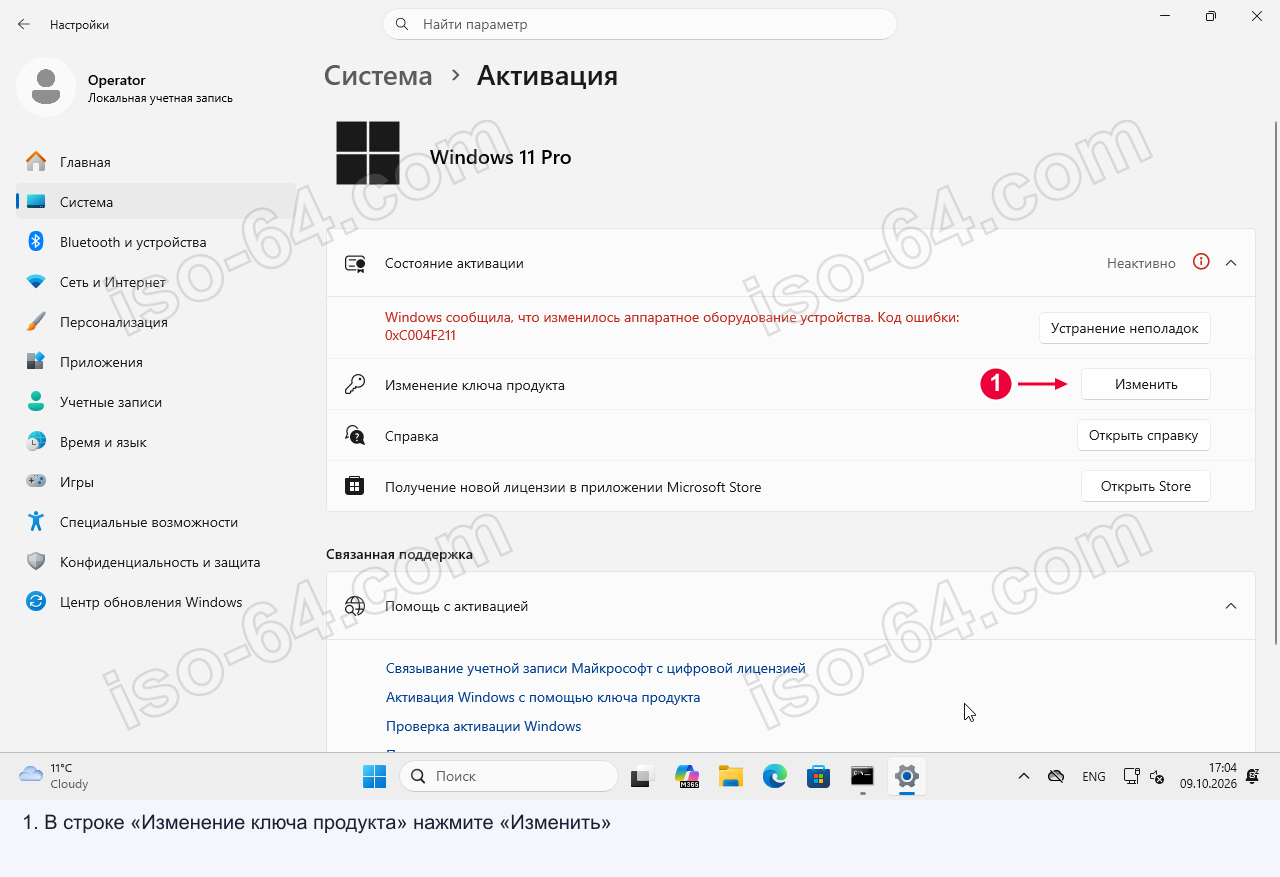
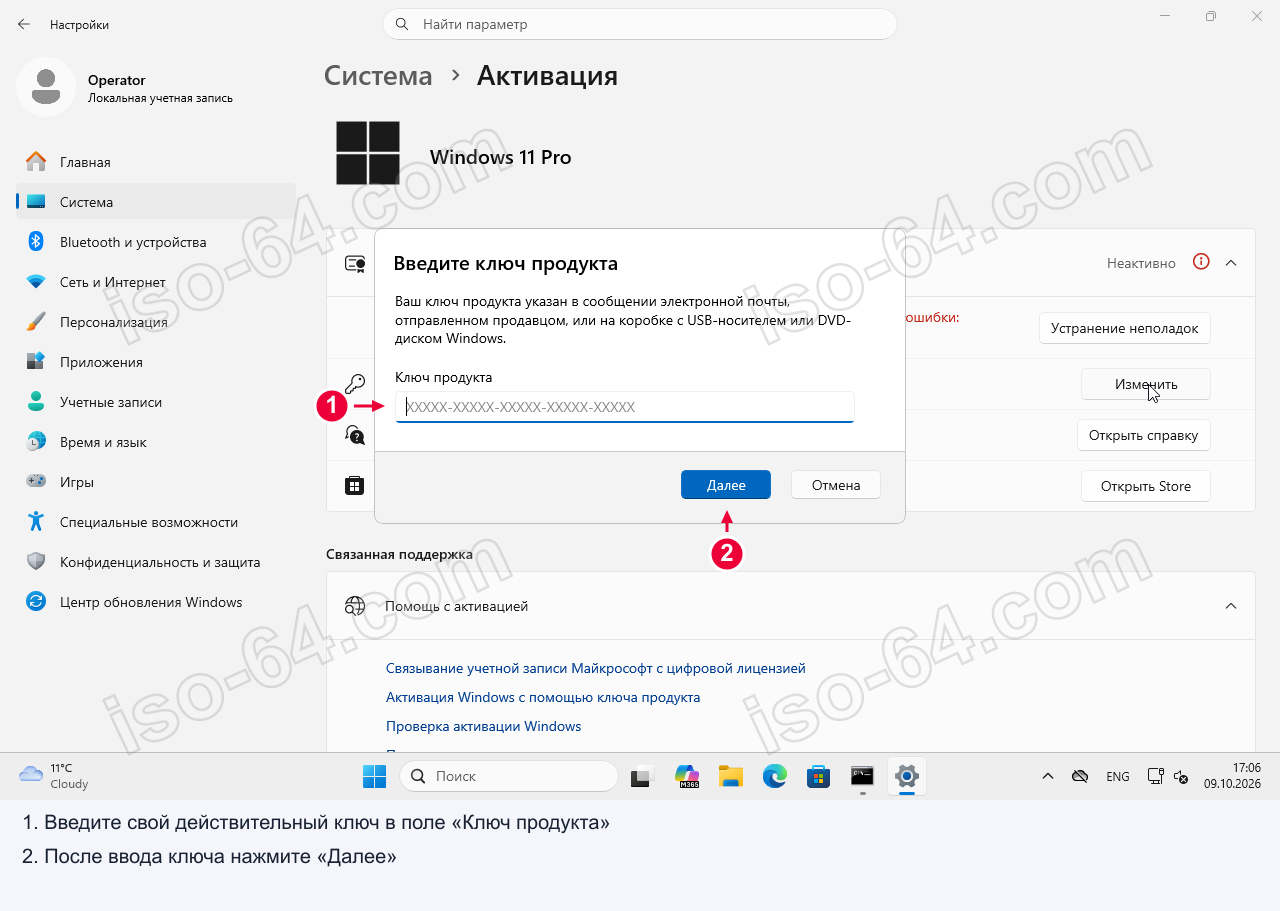
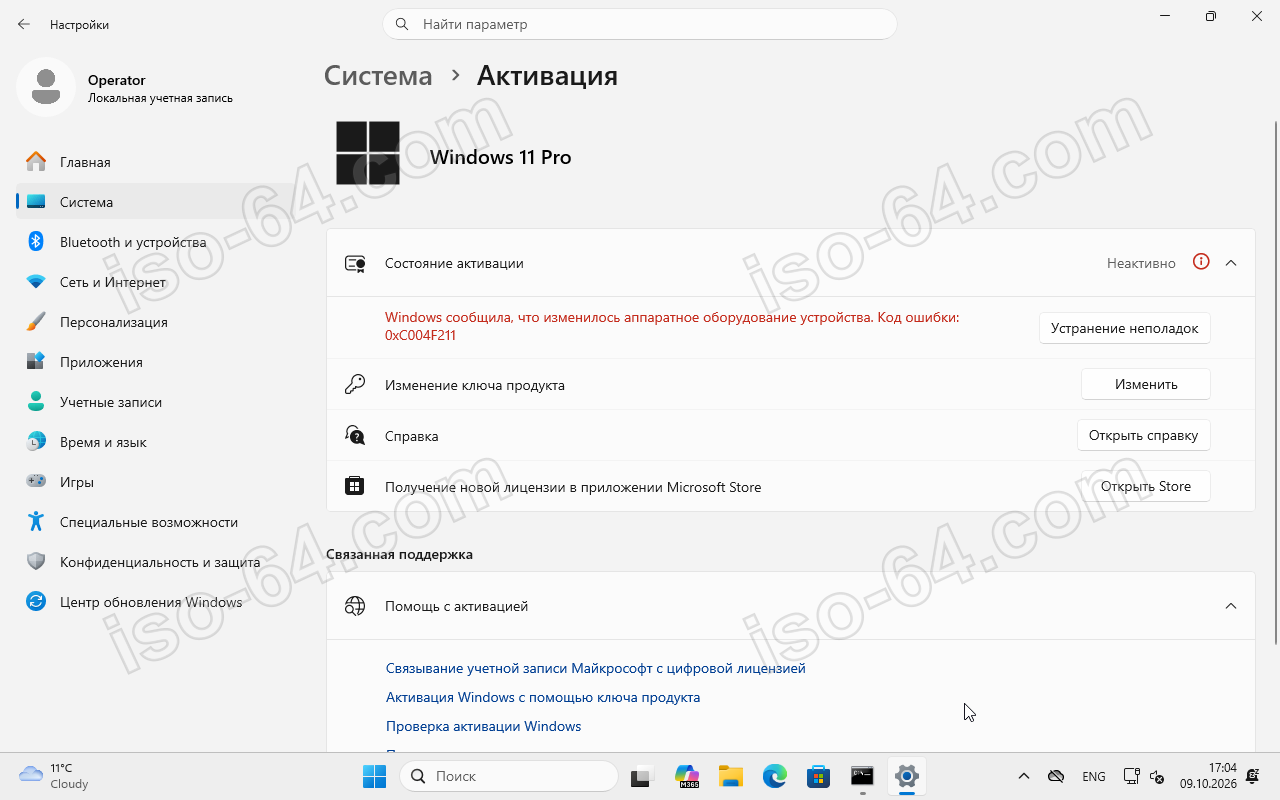
Windows 11 moves things to System in Settings, then Activation. Find the row about changing the code and use its «Change» button; the same single-field dialog appears, followed by «Next». Again, nothing was typed.
Windows 11 Pro Activation screen: Change sits beside the key row. Status Not active, 0xC004F211; no activation reached.Windows 11 key dialog, field blank, Next button below. Nothing typed, nothing activated.
2
From Run - the quick way
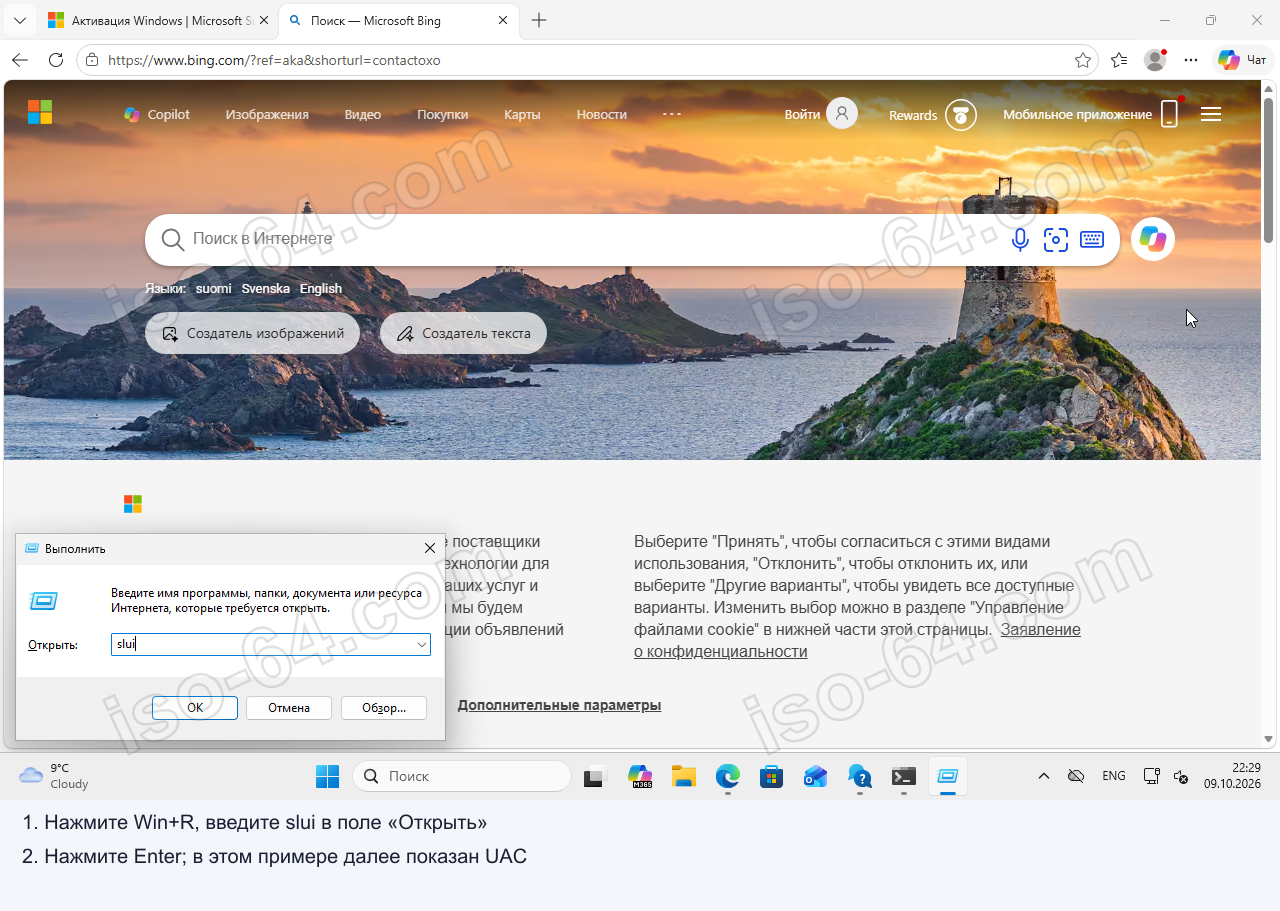
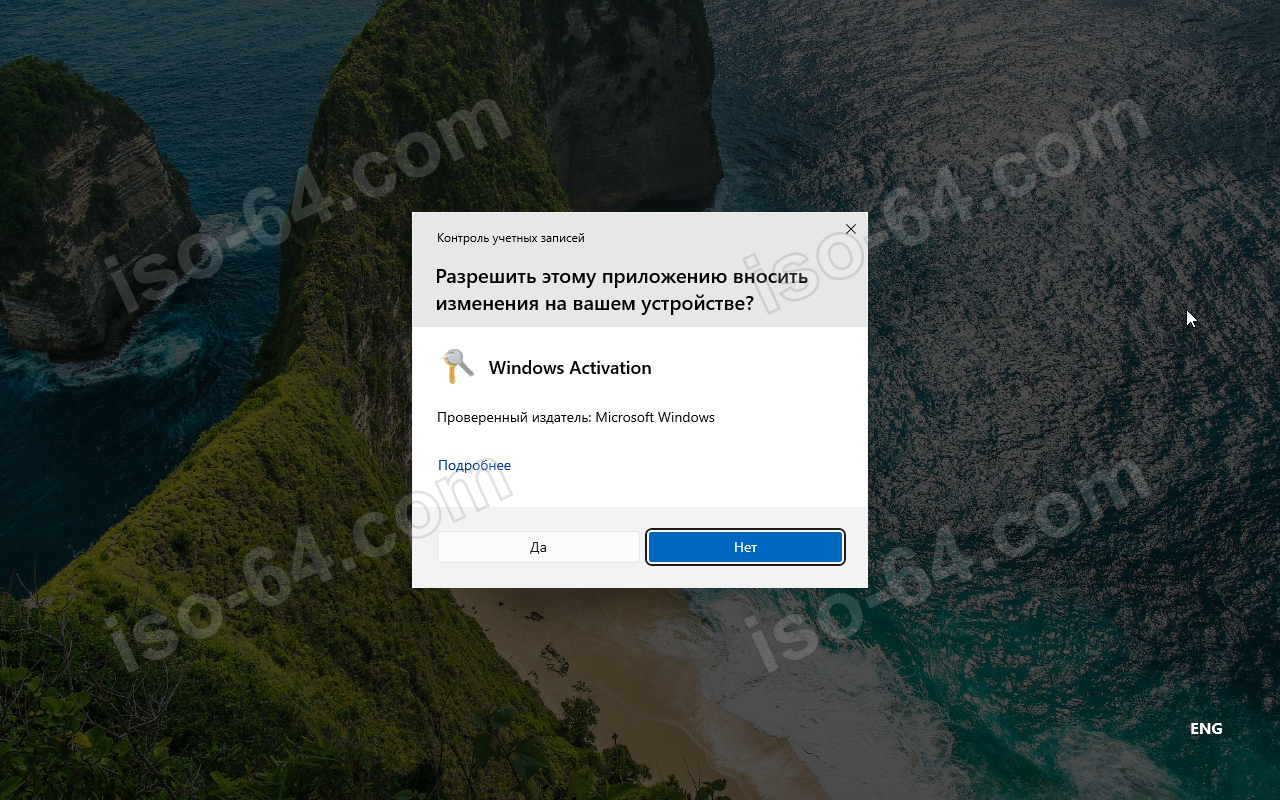
Hit Win + R, type slui into «Open» and press Enter. In our run that produced a UAC prompt for Windows Activation, but the key dialog never showed up. The working Settings route is above.
Run box with slui entered under Open, ready for Enter. Here it led to a UAC prompt rather than a key field.UAC prompt raised by slui for Windows Activation, verified publisher Microsoft Windows. A permission request - neither a key field nor proof of activation.
3
From Command Prompt (as administrator)
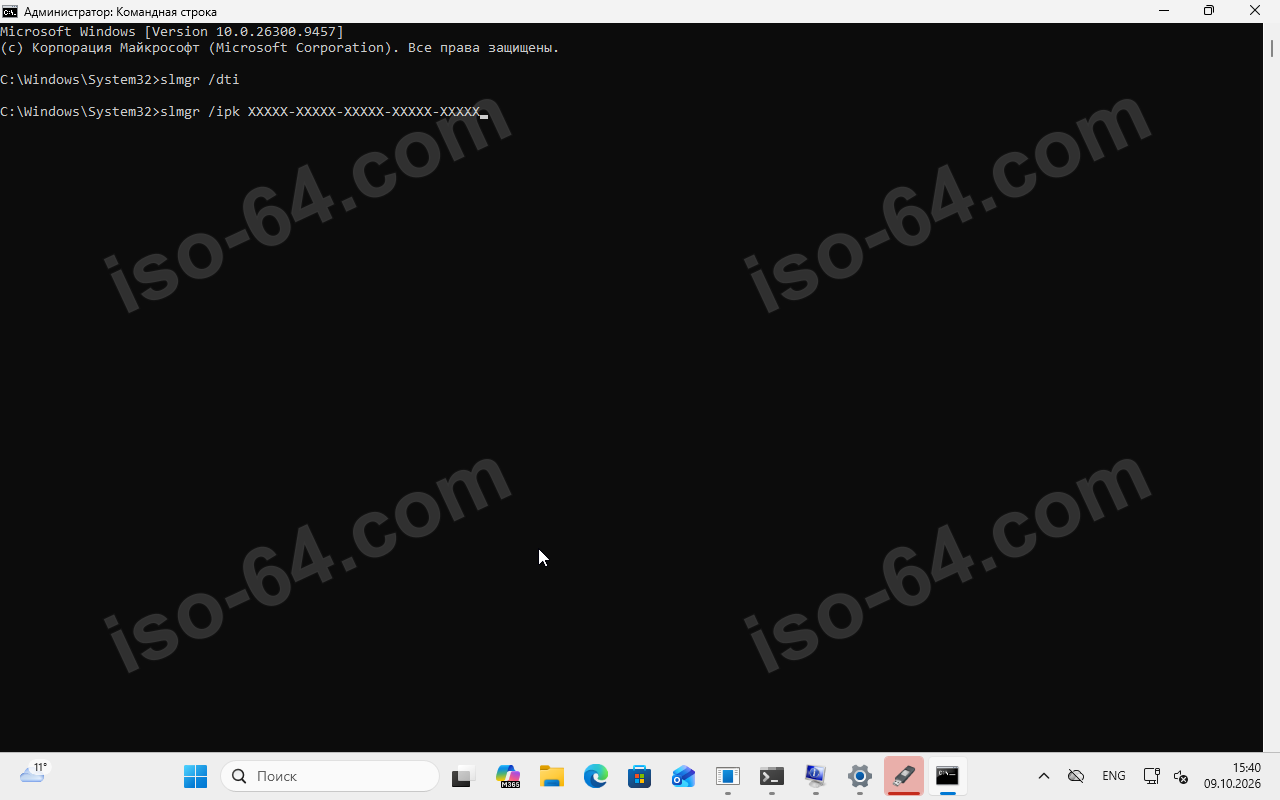
Inside an elevated console, replace each X with the characters of your genuine code: slmgr /ipk XXXXX-XXXXX-XXXXX-XXXXX-XXXXX. The capture holds only the typed template; Enter was never pressed.
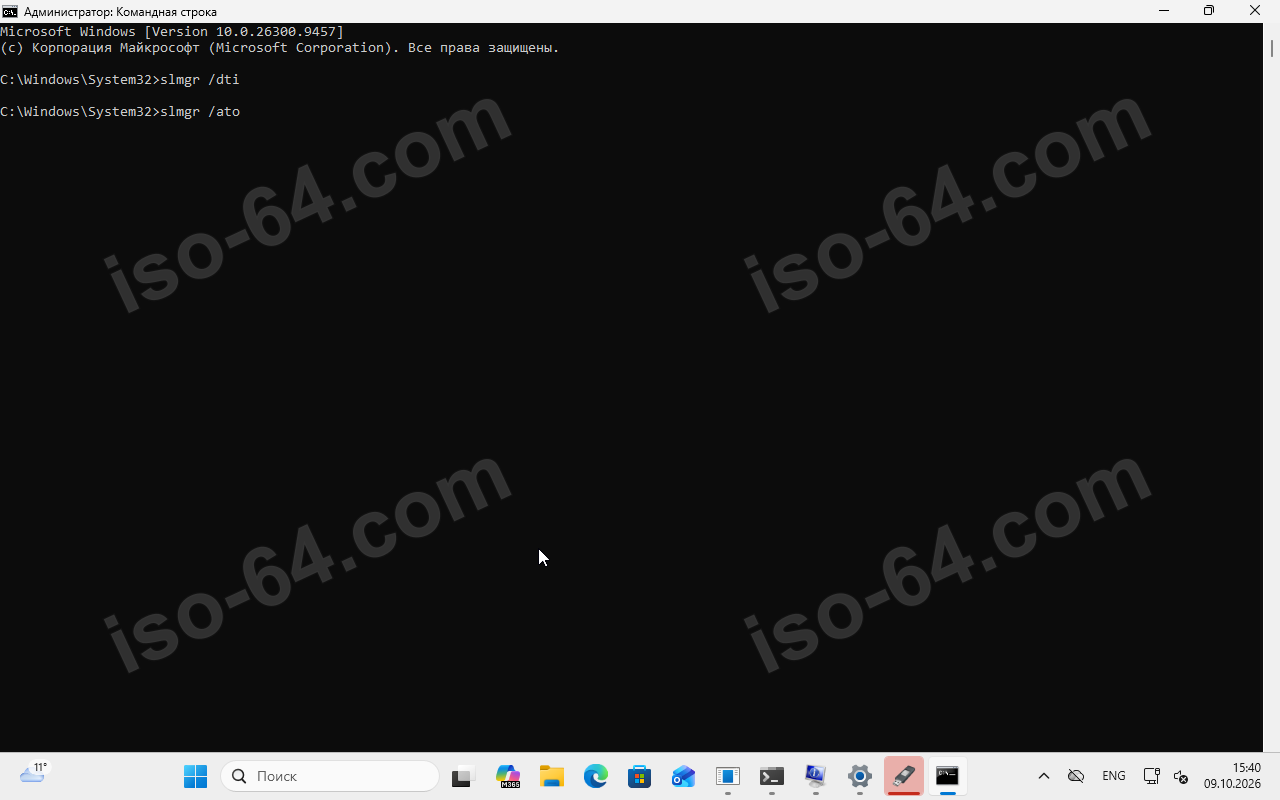
Once your key installs, run slmgr /ato and read the outcome. Another frame shows the command typed but not executed.
Administrator console holding the placeholder line slmgr /ipk XXXXX-XXXXX-XXXXX-XXXXX-XXXXX - X's only, never run. Output from slmgr /dti further up comes from an earlier, unrelated call.Same console with slmgr /ato typed and left unexecuted; nothing installed, nothing activated. The /dti lines higher up are not what /ato printed.
Switch /ipk loads a code into the licensing service, /ato asks the servers to activate; the outcome rests on that code and its channel. The /dti line visible above in the captures is leftover output, unrelated to either switch.
Attaching the entitlement to a Microsoft profile
After a successful key activation, attach the resulting entitlement to your Microsoft profile. Should the motherboard ever be replaced, reactivating without that step can fail.
1
Open Activation - in System settings on 11, under Update & Security on 10. Our 11 capture still says Not active, 0xC004F211: it shows where to look, not what a working code produces.
Second look at Windows 11 Pro: Not active, 0xC004F211. The page layout only, not a post-key state.
2
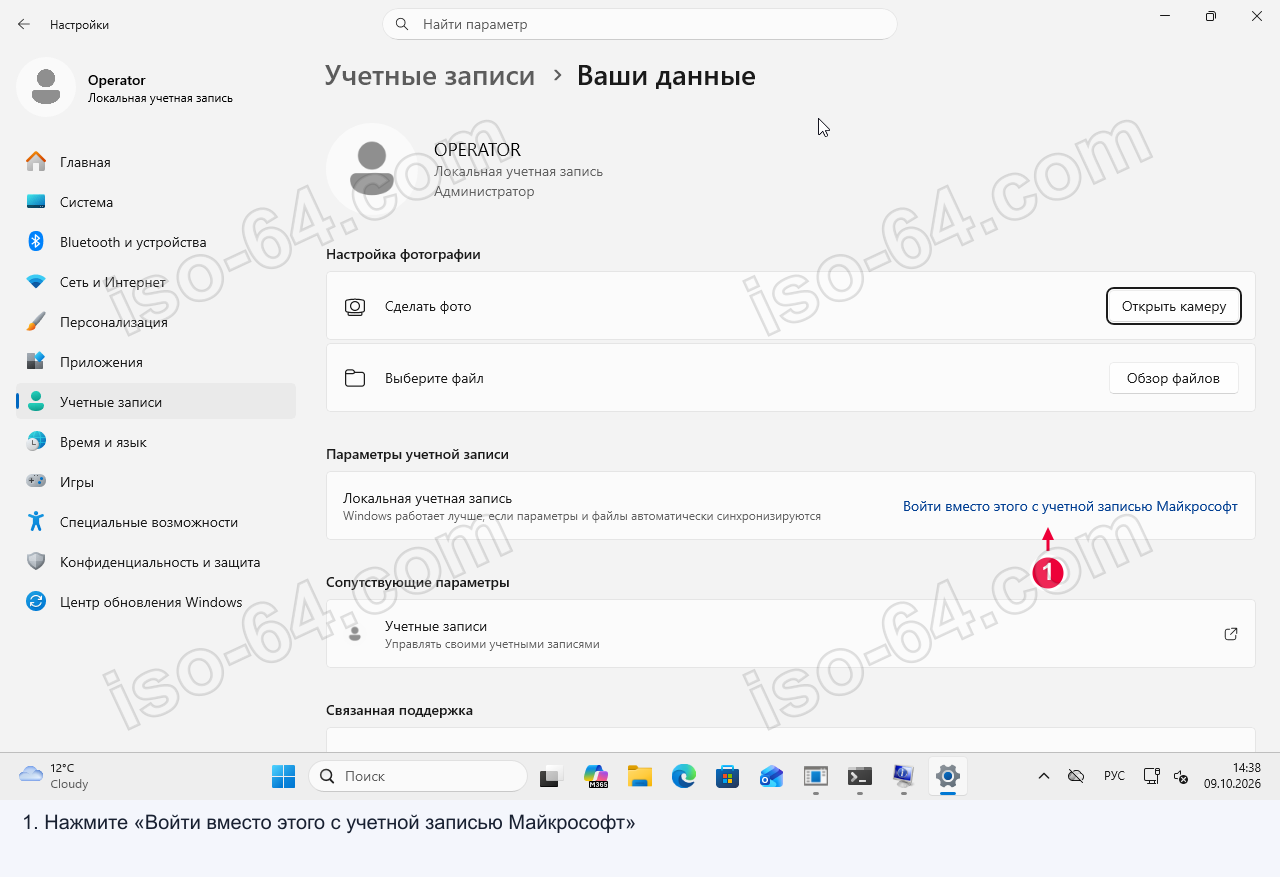
Still on a local profile? The second Windows 11 sample shows the Accounts page with a link to switch over to a Microsoft login. We stopped short of logging in. Attach only after you have verified a working activation.
Second Windows 11 sample, Your info page, local profile. The switch-to-Microsoft link starts a login we abandoned; nothing got attached.
3
Expect a status line mentioning your Microsoft profile. We never reached it here; having it simplifies reactivation, though not every licence type can travel to new hardware.
Is this method for you
✓ You need a key
A self-built PC - its UEFI carries no entitlement, so a purchased retail key is the only way to activate
A used machine wearing a COA sticker - the code hides beneath a scratch-off strip; an earlier owner may have consumed the hardware entitlement
New motherboard - OEM rights stay with the old board; without a prior profile attachment, typing a code or calling support is all that is left
Home → Pro upgrade - changing edition without reinstalling asks for a Pro code through the change-key option
An OEM key bought on its own - it is not burned into firmware and has to be typed in
Lost activation - Windows dropped to unactivated without a clear cause and has no stored entitlement
✗ No key needed
Reinstalling on the same PC - choose «I don't have a product key» during setup; the hardware entitlement kicks in on its own
A brand-name laptop (ASUS, HP, Lenovo and others) - the key lives in UEFI and the system activates itself once online
In-place 10 → 11 upgrade - rights follow the machine automatically
Bought through the Microsoft Store - your Microsoft profile activates it, nothing typed
Entitlement already on your profile - once logged in, the troubleshooter reapplies it
Key types and how they differ
Know which kind of key you hold before typing it - that decides what it is tied to and whether it can move.
Type
Description
Bound to
Transfer
Retail (FPP)
Boxed retail edition
Microsoft account
Transferable
OEM
Ships with a new device from the manufacturer
Motherboard
Not transferable
VL (Volume)
Volume licence MAK/KMS
Domain or KMS server
Organisations only
Beware of cheap marketplace keys
Codes priced at 100–500 roubles are typically volume or stolen MAKs. They often work at first, but Microsoft cancels them in waves. Seeing 0xC004C003 means that code is dead. Buy only from the official Microsoft Store.
Frequent errors and fixes
0xC004F213
«No product key found»
Seen most often - and a code may well be present despite the wording. Usual culprits: setup was told there is no code while no entitlement exists, so a generic placeholder got installed; a different edition was installed than the one licensed; an OEM code is being moved onto other hardware; or replaced parts changed the configuration ID and broke the pairing.
0xC004C003
Key blocked
Microsoft cancelled the MAK, typically one bought from a marketplace. Clear it with slmgr /upk, then type a new genuine code.
Key does not fit the edition
Codes are locked to a release - Home, Pro, Education. A Home code typed into an installed Pro edition gets rejected. Reinstall to match, or buy a code for what is installed.
Same hardware, fresh install - skip the code
Reinstalling where Windows was previously activated needs no code. Tell setup you have none, and activation completes online from the entitlement Microsoft already holds for those parts.
Codes from 10 also activate 11
An older Pro code from version 10 is accepted by the newer Pro, both sharing one licensing family. After an in-place move the entitlement comes along, so re-entering is unnecessary.
Comments: 0