How to install Windows 11 updates through Windows Update

With Windows 11 already in place, monthly fixes arrive through Windows Update. The same steps apply to an installed 26H2: all you need is an internet connection and a chance to restart. No ISO download or setup run is needed for an ordinary cumulative update.
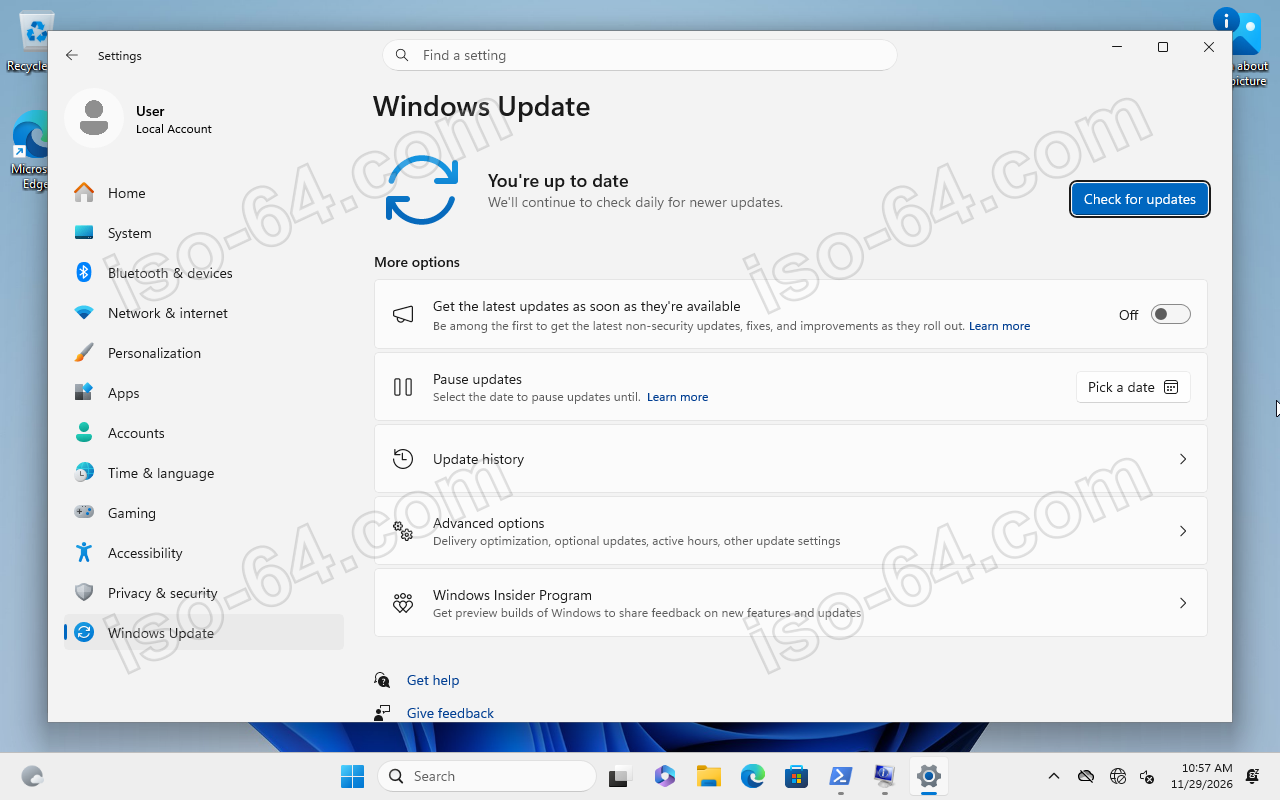
1
Open Windows Update
Press Win + I and pick «Windows Update» in the left column of Settings. Plug a laptop into power. Save any open documents so a restart will not cost you work.
Paused updates have to be resumed on the same page first. On a work computer, your organisation's administrator may decide which packages are offered.
2
Find and install available updates
Click «Check for updates» and let the search finish. Windows contacts the update service, then the page lists whatever packages it found together with their install state.
Windows Update — Windows 11 Pro 26H2, 26300.10075 (en-US)
A download that starts on its own just needs time to complete. When an offered package has a download-and-install button next to it, click it. The package name, KB number and percentage tell you whether Windows is searching, downloading or installing.
Routine servicing does not require picking optional preview updates or joining the Windows Insider Program. Treat an offer to move to a newer Windows version as a separate decision: check compatibility and back up before switching. Upgrading with an ISO has its own guide.
3
Finish with a restart
When Windows Update asks for a restart, save your work and use the button it shows. If now is a bad moment, schedule the restart for a time that suits you.
Wait until the sign-in screen comes back. Keep the power on while updates are applied. A percentage that stays the same for a while is not, on its own, a sign of failure.
4
Confirm the result
Go back to Settings → Windows Update. Nothing should be left half-installed or waiting for a restart; run one more check.
On the same page open «Update history». Locate the cumulative update you were after and read its status and install date. Note the KB number if one is shown - it helps when looking up the release notes or an error.
To see the version, press Win + R, type winver and hit Enter. Compare the build against the notes for the KB you actually installed. A cumulative package can raise the build number while the label stays 26H2, so it need not equal the build of the ISO on this site.

When the search or install does not complete

On an error, write down its code and the package name. Check the internet connection, free disk space and any pending restart. Fix the cause and search again; if the problem persists, follow Microsoft's troubleshooting guide for Windows updates.

«You're up to date» refers only to packages this device is being offered right now. It does not mean a new Windows release has already been made available to you. If the goal is moving from an earlier version to 26H2, read the guide to upgrading Windows 11 to a new version first.

Sources: installing Windows updates and Microsoft's Windows Update FAQ.

Comments: 0