Windows 11 26H2 x64 ISO in English with updates as of November 2026 - Download ISO image

Download the English (United States) Windows 11 26H2 x64 ISO, build 26300.10075. It includes the November 19, 2026 preview cumulative update KB5132057. Windows Setup offers seven editions.

Download the ISO · Mirror

Choose an edition

Windows 11 x64 EDITIONS

Image details Windows 11 26H2 x64

Updates November 2026
Support Home/Pro – until 10.10.2028; Enterprise – until 09.10.2029
Version (build) 26300.10075
Included KBs KB5132057
Architecture 64 bit (x64)
Release type Preview
Language English (United States)
Image size 9.14 GB
File name En_Windows_11_26H2_x64_26300.10075.iso
Rating: 0 out of 5 (votes: 0) - Rate it
Checksums (authenticity check)
SHA-256: 7E40870AC9C937D627C7CD81185DD4A33DD1ED720F040049F017CBC52C3BC41B
SHA-1: 051F73183ABF1401C35C4F95BE4C0B414C313BF0

Previous versions Windows 11

Name
Tags
Size
Support
Windows 11 26H1 x64
OS Build: 28000.3365 · Russian · Preview
OLD
9,75 GB
Home/Pro until 14.03.2028; Enterprise until 13.03.2029
Windows 11 25H2 x64
OS Build: 26200.9818 · Russian · Preview
HOT
9,33 GB
Home/Pro until 12.10.2027; Enterprise until 10.10.2028
Windows 11 24H2 x64
OS Build: 26100.9725 · Russian · Out-of-band
OLD
10,66 GB
Home/Pro until Oct 13, 2026; Enterprise until Oct 12, 2027
Windows 11 23H2 x64
OS Build: 22631.7654 · Russian · Out-of-band
OLD
8,73 GB
Home/Pro until 11.11.2025; Enterprise until 10.11.2026
Ways to set up Windows
What is installed right now?
Windows 11 → 26H2 update → Step-by-step guide ⏱ ~15–25 min
✓ Supported hardware should run 26H2 today. The material below is an older 25H2 → 26H1 trial; its build numbers and single-file check describe that run only.
  • 1A second lab case: an image of 26H1 mounted from Windows 11 25H2 as an optical drive. Microsoft has no supported path for taking a current device to 26H1.
    Inside C:\ISO, the 26H1 file Ru_Windows_11_26H1_28000.2954 from that earlier run sits second. At present a Win10 image is highlighted - click the proper one first. Extensions are hidden.
    Inside C:\ISO, the 26H1 file Ru_Windows_11_26H1_28000.2954 from that earlier run sits second. At present a Win10 image is highlighted - click the proper one first. Extensions are hidden.
    Once opened, the lab image became virtual optical drive G: labelled CCSA_X64FRE_RU-RU_DV9. Letters vary between computers.
    Once opened, the lab image became virtual optical drive G: labelled CCSA_X64FRE_RU-RU_DV9. Letters vary between computers.
  • 2Start setup.exe and allow the usual UAC request.
    User Account Control: app Microsoft Windows, verified publisher Microsoft Corporation. When the installer you picked starts, approve it with «Yes».
    User Account Control: app Microsoft Windows, verified publisher Microsoft Corporation. When the installer you picked starts, approve it with «Yes».
  • 3Our trial wizard got consent to the licence, kept data plus programs and began installing. One image allowing this proves nothing about official 26H1 support.
    Licence screen of the wizard: look through it, and agree only if it suits you.
    Licence screen of the wizard: look through it, and agree only if it suits you.
    Keep screen in the lab wizard: files and programs preserved, then forward. An available choice is not evidence that Microsoft endorses moving to 26H1.
    Keep screen in the lab wizard: files and programs preserved, then forward. An available choice is not evidence that Microsoft endorses moving to 26H1.
    Final summary: Pro edition, data and programs preserved, start button below. A note mentions BitLocker being paused; that by itself does not mean this VM is encrypted.
    Final summary: Pro edition, data and programs preserved, start button below. A note mentions BitLocker being paused; that by itself does not mean this VM is encrypted.
  • 4Let it run to the end. The frame captures our trial outcome, Pro 26H1 28000.2954. Your own PC needs its own check.
    Outcome of testing this site's ISO: 25H2 26200.9445 → 26H1 28000.2954. Microsoft does not back this move on existing devices, and a successful lab run does not change that.
    Outcome of testing this site's ISO: 25H2 26200.9445 → 26H1 28000.2954. Microsoft does not back this move on existing devices, and a successful lab run does not change that.
  • 5Head to Windows Update and search for new packages. The frame catches the search mid-way, not a finished set of updates.
    Just after the update, the search for new packages is under way. Its button stays greyed out meanwhile, so do not click again; no result is visible in this frame yet.
    Just after the update, the search for new packages is under way. Its button stays greyed out meanwhile, so do not click again; no result is visible in this frame yet.
Can Windows still boot?
Reinstall while the PC still boots ⏱ ~25–35 min
ℹ Step 3 lets you decide whether your data stays or everything goes.
  • 1Separate frames: a 26H1 test image opened under Win11 25H2, plus its mounted disc. For a normal reinstall take a supported image suited to your PC; 26H1 is not an approved upgrade for it.
    Inside C:\ISO, the 26H1 file Ru_Windows_11_26H1_28000.2954 from that earlier run sits second. At present a Win10 image is highlighted - click the proper one first. Extensions are hidden.
    Inside C:\ISO, the 26H1 file Ru_Windows_11_26H1_28000.2954 from that earlier run sits second. At present a Win10 image is highlighted - click the proper one first. Extensions are hidden.
    Once opened, the lab image became virtual optical drive G: labelled CCSA_X64FRE_RU-RU_DV9. Letters vary between computers.
    Once opened, the lab image became virtual optical drive G: labelled CCSA_X64FRE_RU-RU_DV9. Letters vary between computers.
  • 2Go through the wizard's licence text and agree if it suits you.
    Licence screen of the wizard: look through it, and agree only if it suits you.
    Licence screen of the wizard: look through it, and agree only if it suits you.
  • 3Decide what should survive. The frame retains both documents and programs; neither the documents-only nor the erase-all choice is selected. Erasing all removes your data and software.
    Keep screen in the lab wizard: files and programs preserved, then forward. An available choice is not evidence that Microsoft endorses moving to 26H1.
    Keep screen in the lab wizard: files and programs preserved, then forward. An available choice is not evidence that Microsoft endorses moving to 26H1.
  • 4Double-check your choice and launch. The result frames confirm the sample file survived and the system became Pro 26H1; the rest of the files and programs were not audited.
    Following the lab transition, the test document opens in Notepad. Its SHA-256 was compared separately before and after; this frame does not confirm that all apps and files are intact.
    Following the lab transition, the test document opens in Notepad. Its SHA-256 was compared separately before and after; this frame does not confirm that all apps and files are intact.
    Outcome of testing this site's ISO: 25H2 26200.9445 → 26H1 28000.2954. Microsoft does not back this move on existing devices, and a successful lab run does not change that.
    Outcome of testing this site's ISO: 25H2 26200.9445 → 26H1 28000.2954. Microsoft does not back this move on existing devices, and a successful lab run does not change that.
  • 5Next, visit Windows Update and sort out drivers. Only the update scan was filmed; no full driver setup.
    Just after the update, the search for new packages is under way. Its button stays greyed out meanwhile, so do not click again; no result is visible in this frame yet.
    Just after the update, the search for new packages is under way. Its button stays greyed out meanwhile, so do not click again; no result is visible in this frame yet.
Repair from a bootable flash drive ⏱ ~40–50 min
⚠ This route requires a flash drive. Where possible, rescue your files onto another disk beforehand.
  • 1Make the installation media with the Rufus guide. The frames cover a separate Windows 11 26H1 test ISO: GPT, UEFI (non CSM), then the READY status. They do not prove that any other ISO was written.
    Windows 11 ISO selected: GPT, UEFI and a test USB stick
    Windows 11 ISO selected: GPT, UEFI and a test USB stick
    Rufus has finished writing the Windows 11 26H1 drive.
    Rufus has finished writing the Windows 11 26H1 drive.
  • 2Plug in the stick, then reach the boot menu or firmware with your brand's hotkey. We did not film the physical step or the keypress.
  • 3Our virtual OVMF example puts USB ISO64-CAPTURE at the head of the boot list, and another frame confirms Secure Boot is Enabled. For exact menus and saving with F10 → Y, see the dedicated firmware guides. Your PC's firmware will look different.
    ISO64-CAPTURE now heads the list. The on-screen legend explains which keys to use.
    ISO64-CAPTURE now heads the list. The on-screen legend explains which keys to use.
    Secure Boot turned on in OVMF: Current Secure Boot State - Enabled, Attempt Secure Boot ticked.
    Secure Boot turned on in OVMF: Current Secure Boot State - Enabled, Attempt Secure Boot ticked.
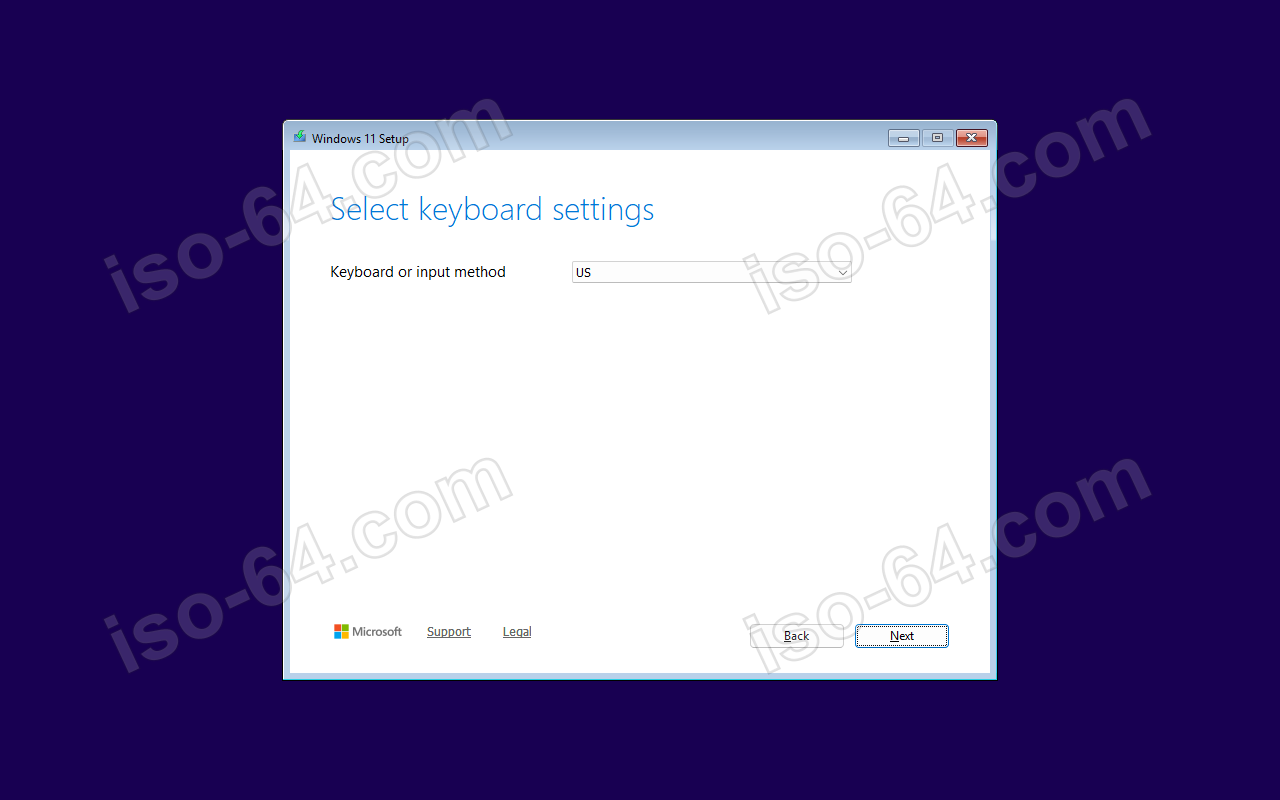
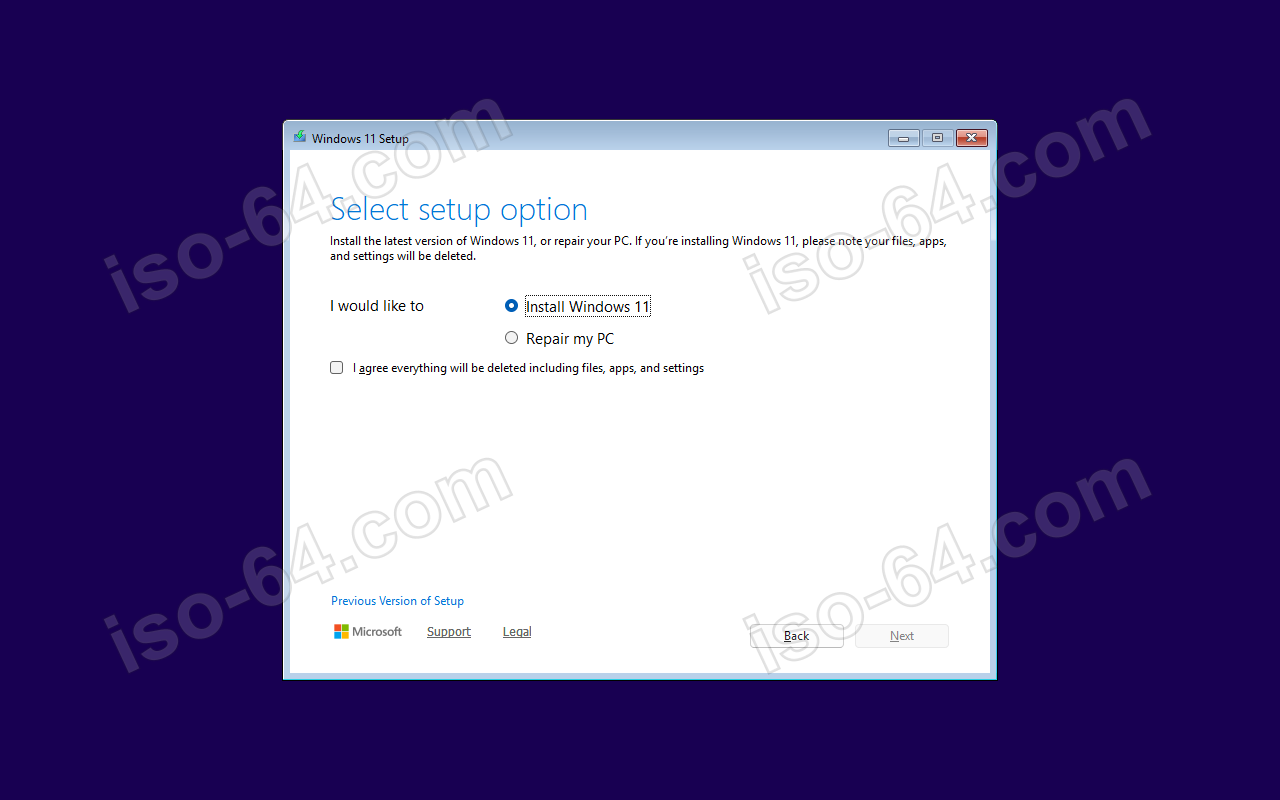
  • 426H1 shots: pick language and layout and go on. Where the wizard offers setup choices, we followed the link to the legacy wizard. It asks for a language, then you launch the install and skip the key. In the new wizard the data-wipe checkbox remained empty.
    Win11 wizard: Russian (Russia) chosen as language and regional format; continue.
    Win11 wizard: Russian (Russia) chosen as language and regional format; continue.
    A dedicated layout screen with Russian picked, then forward.
    A dedicated layout screen with Russian picked, then forward.
    Win11 wizard: following the legacy-wizard link brings up the screens that come next. Data-removal confirmation remains unticked.
    Win11 wizard: following the legacy-wizard link brings up the screens that come next. Data-removal confirmation remains unticked.
    In the older wizard: Russian (Russia) twice and the Russian layout, then forward.
    In the older wizard: Russian (Russia) twice and the Russian layout, then forward.
    The previous Windows 11 Setup: the «Install now» button.
    The previous Windows 11 Setup: the «Install now» button.
    Windows 11 Setup: the key box is empty, and the «I don't have a product key» link is available.
    Windows 11 Setup: the key box is empty, and the «I don't have a product key» link is available.
  • 5Pro is picked in our example, with Home also on the list. Match it to your licence. Agree to the licence and choose the custom, Windows-only installation.
    Two editions in this image, Home and Pro; Pro is highlighted, then forward.
    Two editions in this image, Home and Pro; Pro is highlighted, then forward.
    Windows 11 Setup: acceptance of the licence terms is ticked; after reading, press «Next».
    Windows 11 Setup: acceptance of the licence terms is ticked; after reading, press «Next».
    Win11 wizard: the advanced option that installs only Windows.
    Win11 wizard: the advanced option that installs only Windows.
  • 6Verify the destination: here, 100 GB of empty space on disk 0, then forward. The next frame captures copying at 0%; the end is not shown yet.
    Another sample with an empty test disk: 100 GB free on disk 0, then forward.
    Another sample with an empty test disk: 100 GB free on disk 0, then forward.
    Windows 11 Setup has moved on to copying files, 0%. Completion is not shown here yet.
    Windows 11 Setup has moved on to copying files, 0%. Completion is not shown here yet.
New PC / blank disk ⏱ ~30–40 min
ℹ You need an empty USB stick of 8 GB or more. Writing the image wipes everything on it.
  • 1Prepare the media with the Rufus guide. The frame shows a finished, separate Windows 11 26H1 write. It illustrates this test ISO and does not confirm writing any other version.
    Rufus has finished writing the Windows 11 26H1 drive.
    Rufus has finished writing the Windows 11 26H1 drive.
  • 2Attach the stick to the computer being set up and call up its boot menu or firmware using the maker's hotkey. No frame shows the cable or a specific PC's key.
  • 3Frames come from a separate OVMF virtual machine: USB ISO64-CAPTURE first, Secure Boot Enabled. Branded firmware differs; saving and rebooting are explained in the full guide.
    ISO64-CAPTURE now heads the list. The on-screen legend explains which keys to use.
    ISO64-CAPTURE now heads the list. The on-screen legend explains which keys to use.
    Secure Boot turned on in OVMF: Current Secure Boot State - Enabled, Attempt Secure Boot ticked.
    Secure Boot turned on in OVMF: Current Secure Boot State - Enabled, Attempt Secure Boot ticked.
  • 426H1 shots: language and layout, forward, then the legacy-wizard link. That wizard asks for a language, launches the install and lets you bypass the key. Leaving the key blank is unrelated to activation.
    Win11 wizard: Russian (Russia) chosen as language and regional format; continue.
    Win11 wizard: Russian (Russia) chosen as language and regional format; continue.
    A dedicated layout screen with Russian picked, then forward.
    A dedicated layout screen with Russian picked, then forward.
    Win11 wizard: following the legacy-wizard link brings up the screens that come next. Data-removal confirmation remains unticked.
    Win11 wizard: following the legacy-wizard link brings up the screens that come next. Data-removal confirmation remains unticked.
    In the older wizard: Russian (Russia) twice and the Russian layout, then forward.
    In the older wizard: Russian (Russia) twice and the Russian layout, then forward.
    The previous Windows 11 Setup: the «Install now» button.
    The previous Windows 11 Setup: the «Install now» button.
    Windows 11 Setup: the key box is empty, and the «I don't have a product key» link is available.
    Windows 11 Setup: the key box is empty, and the «I don't have a product key» link is available.
  • 5Choose whichever edition your licence covers (the frame uses Pro). After agreeing to the licence, pick the custom route that installs Windows alone. Our target here is 100 GB of empty space on the first disk.
    Two editions in this image, Home and Pro; Pro is highlighted, then forward.
    Two editions in this image, Home and Pro; Pro is highlighted, then forward.
    Windows 11 Setup: acceptance of the licence terms is ticked; after reading, press «Next».
    Windows 11 Setup: acceptance of the licence terms is ticked; after reading, press «Next».
    Win11 wizard: the advanced option that installs only Windows.
    Win11 wizard: the advanced option that installs only Windows.
    Another sample with an empty test disk: 100 GB free on disk 0, then forward.
    Another sample with an empty test disk: 100 GB free on disk 0, then forward.
  • 6Next comes the welcome sequence. Region Russia and the Russian layout get confirmed, and the PC ends up on Pro 26H1 28000.2954. Sign-in, privacy and networking get fuller coverage in our Win11 install guide; drivers were not checked one by one.
    Windows 11 first-run setup: Russia is selected; confirm with «Yes».
    Windows 11 first-run setup: Russia is selected; confirm with «Yes».
    Windows 11 first-run setup: the Russian layout is selected; confirm with «Yes».
    Windows 11 first-run setup: the Russian layout is selected; confirm with «Yes».
    Clean lab install result: Windows 11 Pro 26H1, OS build 28000.2954 - the version the capture environment had back then.
    Clean lab install result: Windows 11 Pro 26H1, OS build 28000.2954 - the version the capture environment had back then.
Clean install - wipe everything ⏱ ~30–45 min
⚠ Whatever sits on the Windows partition will be gone permanently. Move anything valuable to a USB disk or an online drive first.
  • 1Back up important files somewhere else before wiping. The frames involve only one purpose-made sample document and its copy on USB, not a complete backup of user data.
    Ahead of the trial upgrade, a purpose-made test document ISO64-example is selected in Documents and copied with Ctrl+C. It illustrates backing up a single file.
    Ahead of the trial upgrade, a purpose-made test document ISO64-example is selected in Documents and copied with Ctrl+C. It illustrates backing up a single file.
    The copy landed: test document ISO64-example on a separate ISO64-BACKUP (H:) drive. Ctrl+V pastes the copied file; this frame says nothing about the rest of a backup.
    The copy landed: test document ISO64-example on a separate ISO64-BACKUP (H:) drive. Ctrl+V pastes the copied file; this frame says nothing about the rest of a backup.
  • 2Make the media with the Rufus guide. The frame shows a separate Windows 11 26H1 write ending in READY. Do not take it as proof that another ISO was written.
    Rufus has finished writing the Windows 11 26H1 drive.
    Rufus has finished writing the Windows 11 26H1 drive.
  • 3The OVMF virtual sample shows USB first and Secure Boot Enabled. A real PC's vendor firmware was not filmed; consult our boot menu and UEFI guides for your model.
    ISO64-CAPTURE now heads the list. The on-screen legend explains which keys to use.
    ISO64-CAPTURE now heads the list. The on-screen legend explains which keys to use.
    Secure Boot turned on in OVMF: Current Secure Boot State - Enabled, Attempt Secure Boot ticked.
    Secure Boot turned on in OVMF: Current Secure Boot State - Enabled, Attempt Secure Boot ticked.
  • 4In the legacy wizard (reached the same way as for a new PC), start the install and skip the key. Read the licence, agree and continue.
    The previous Windows 11 Setup: the «Install now» button.
    The previous Windows 11 Setup: the «Install now» button.
    Windows 11 Setup: the key box is empty, and the «I don't have a product key» link is available.
    Windows 11 Setup: the key box is empty, and the «I don't have a product key» link is available.
    Windows 11 Setup: acceptance of the licence terms is ticked; after reading, press «Next».
    Windows 11 Setup: acceptance of the licence terms is ticked; after reading, press «Next».
  • 5Go with the custom installation. Deleting a partition here concerns only a test disk 0: confirm with OK and it turns into empty space, while disks 1 and 2 stay separate. Secure your data before removing real partitions.
    Win11 wizard: the advanced option that installs only Windows.
    Win11 wizard: the advanced option that installs only Windows.
    A separate sample deleting the TEST-SYSTEM partition on test Drive 0: a data-loss warning and the «OK» button. Delete only once the data you need is saved.
    A separate sample deleting the TEST-SYSTEM partition on test Drive 0: a data-loss warning and the «OK» button. Delete only once the data you need is saved.
    With the partition gone, test Drive 0 is 100 GB of unallocated space; Drives 1 and 2 are untouched. Drive 0 is selected.
    With the partition gone, test Drive 0 is 100 GB of unallocated space; Drives 1 and 2 are untouched. Drive 0 is selected.
  • 6Complete the first-run setup. The frames show Russia and the Russian keyboard → «Yes», the resulting Windows 11 Pro 26H1 28000.2954 and an update scan in progress. Neither the scan result nor every driver being installed appears in these frames.
    Windows 11 first-run setup: Russia is selected; confirm with «Yes».
    Windows 11 first-run setup: Russia is selected; confirm with «Yes».
    Windows 11 first-run setup: the Russian layout is selected; confirm with «Yes».
    Windows 11 first-run setup: the Russian layout is selected; confirm with «Yes».
    Clean lab install result: Windows 11 Pro 26H1, OS build 28000.2954 - the version the capture environment had back then.
    Clean lab install result: Windows 11 Pro 26H1, OS build 28000.2954 - the version the capture environment had back then.
    Windows 11 Update page mid-scan; the button is temporarily disabled.
    Windows 11 Update page mid-scan; the button is temporarily disabled.

Windows 11 26H2: the release for compatible PCs

Windows 11 26H2 is the annual Windows 11 release on the 26300 build branch, generally available since 29 September 2026. This page offers the English-language x64 ISO with updates as of November 2026, build 26300.10075, package KB5132057.

Home, Pro and Enterprise each keep their own page with edition details and screenshots taken on an installed system. Every one of those pages links to the same ISO on the main server and on the mirror.

What changed compared with 26H1

26H2 continues the mainstream Windows 11 line for existing compatible devices. 26H1 serves a different purpose: Microsoft ships it for specific new hardware platforms. Details and the earlier image live on the 26H1 page. The 28000 build number of 26H1 does not make it a better pick than 26H2 for an arbitrary PC.

Which edition to choose

  • Home – everyday tasks on a personal computer.
  • Pro – work PCs, policy management and remote access features.
  • Enterprise – corporate deployment, provided you hold a suitable licence.

Type of the integrated update: Preview. The fixes in build 26300.10075 are described in Microsoft's release notes for KB5132057.

Hardware requirements

  • A compatible 64-bit Intel or AMD processor with at least two cores at 1 GHz or more.
  • 4 GB of RAM at minimum; 8 GB or more is better for daily use.
  • A drive of 64 GB or larger. That figure is the minimum device capacity, not a guaranteed amount of free space for an upgrade.
  • UEFI firmware with Secure Boot, TPM 2.0, and DirectX 12 graphics with a WDDM 2.0 driver.

Before installing, confirm that your PC model, CPU and drivers are supported according to Microsoft's requirements. This x64 image targets Intel/AMD machines; ARM devices need a different image.

How to install or upgrade to Windows 11 26H2

For a clean install, prepare a USB stick with the Rufus guide and follow the Windows 11 installation steps. Pick the edition that matches your licence. Formatting a partition during setup wipes its data, so make a backup first.

If Windows still boots and you want to keep your apps, read about upgrading from the ISO. The architecture, the original system language and a compatible edition must all match; check that the keep-files option is offered before you start. Moving from Windows 10 has its own guide. For a routine update, look at what Windows Update offers your device first.

Verifying the file before installation

Compare the SHA-256 of the downloaded ISO with the value shown on this page. A match proves the file is identical to the published reference. The main server and the mirror host the same ISO, so there is no need to download both. See the detailed hash checking guide.

Other Windows 11 versions

The separate hardware branch keeps its own Windows 11 26H1 page. You can also get 25H2, 24H2 and 23H2. Choose a version based on your hardware requirements and how long your edition stays supported.

Support for version 26H2

According to Microsoft's table, Home/Pro receive updates until 10 October 2028 and Enterprise until 9 October 2029. These dates apply to the version and edition, not to the day you download the ISO. Microsoft support lifecycle.

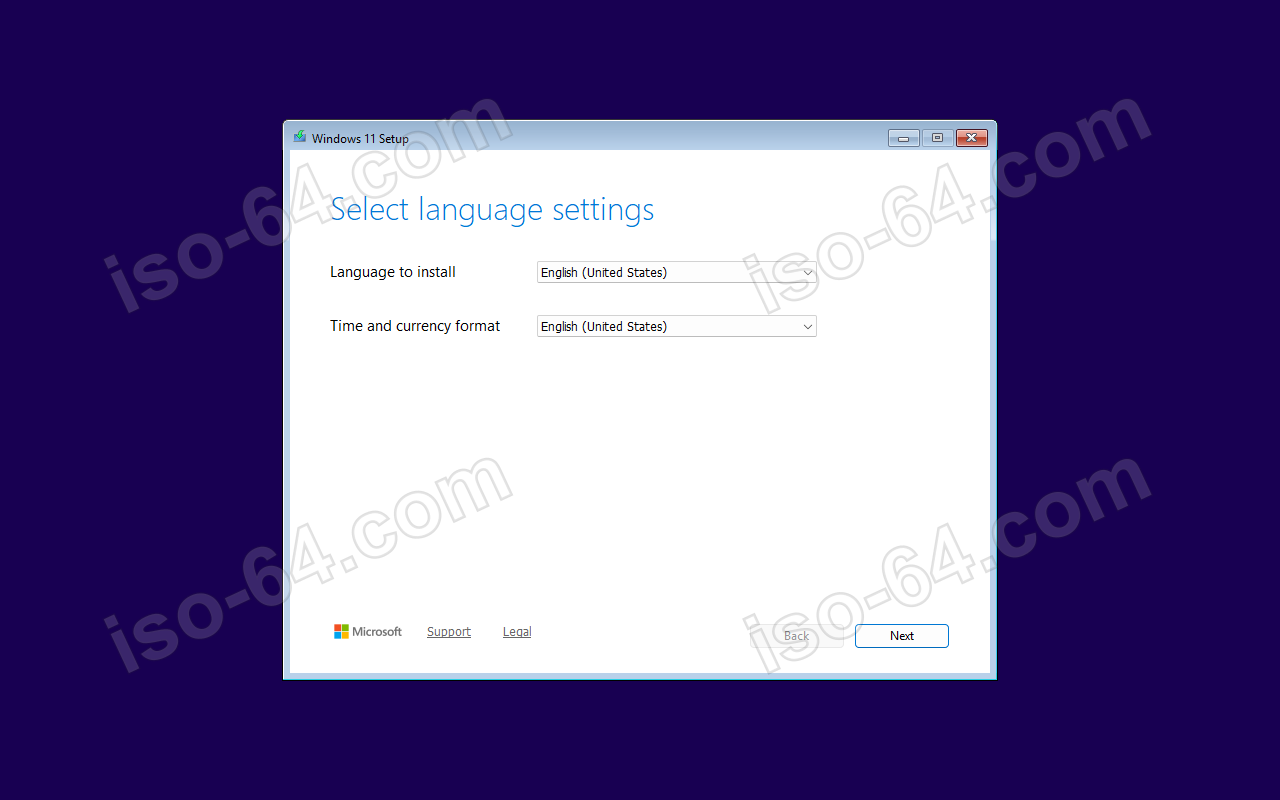
English Windows 11 Setup
Comments: 0