Offline Windows 10/11 activation by phone
On 3 December 2025 Microsoft officially retired telephone activation for Windows and Office - a service that had existed since Windows XP (2001).
Microsoft now says that «offline activation still works», but the procedure is fundamentally different - through a portal opened on another device.
Activating Windows with no internet connection
When the computer you need to activate has no network, Microsoft points you to aka.ms/aoh, opened on a phone or any other connected gadget. Since 3 December 2025 the old automated phone line has been replaced by that web portal. The target PC can stay disconnected; only the helper device must be online.
What you need
The disconnected PC
The machine whose Windows is waiting for activation. You must be able to open an elevated console on it.
A second, connected device
Phone, tablet or another computer. It reaches the
aka.ms/aoh portal and lets you log in with any Microsoft profile.A genuine product key
A valid licence matching your edition. Microsoft's documentation says the portal handles retail, OEM and volume licences; whether it issues a code depends on the particular licence.
Retail / OEM / Volume
Step by step
A
On the disconnected PC - read the Installation ID
1
Start an administrator console. Our Windows 10 Pro 22H2 capture obtained the number with
cscript //nologo %windir%\system32\slmgr.vbs /dti. Plain slmgr /dti displays the same value in a Windows Script Host pop-up.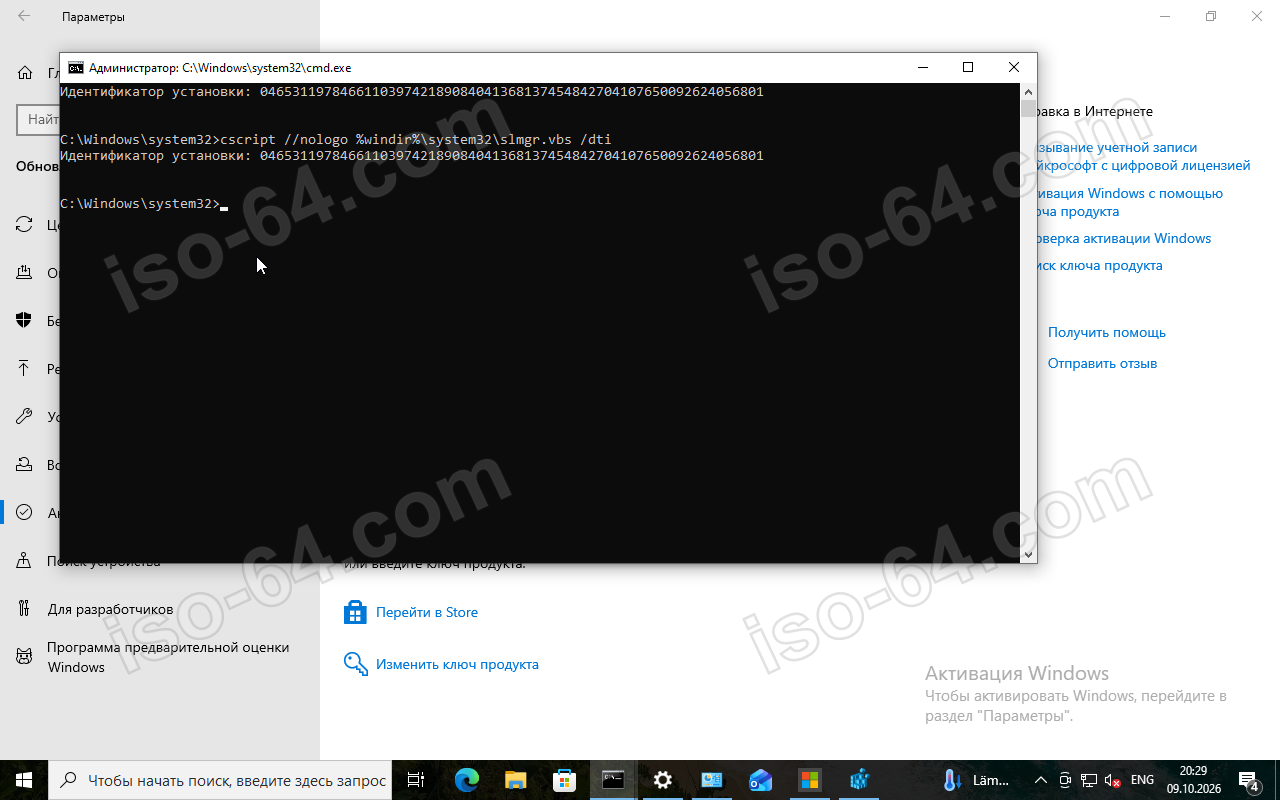
2
Here the value appears in the console on the Installation ID line as one ungrouped string. Write down the number from your own PC - never the sample digits in the picture. Run via slmgr, the window may look different.
B
On the connected device - obtain the Confirmation ID
1
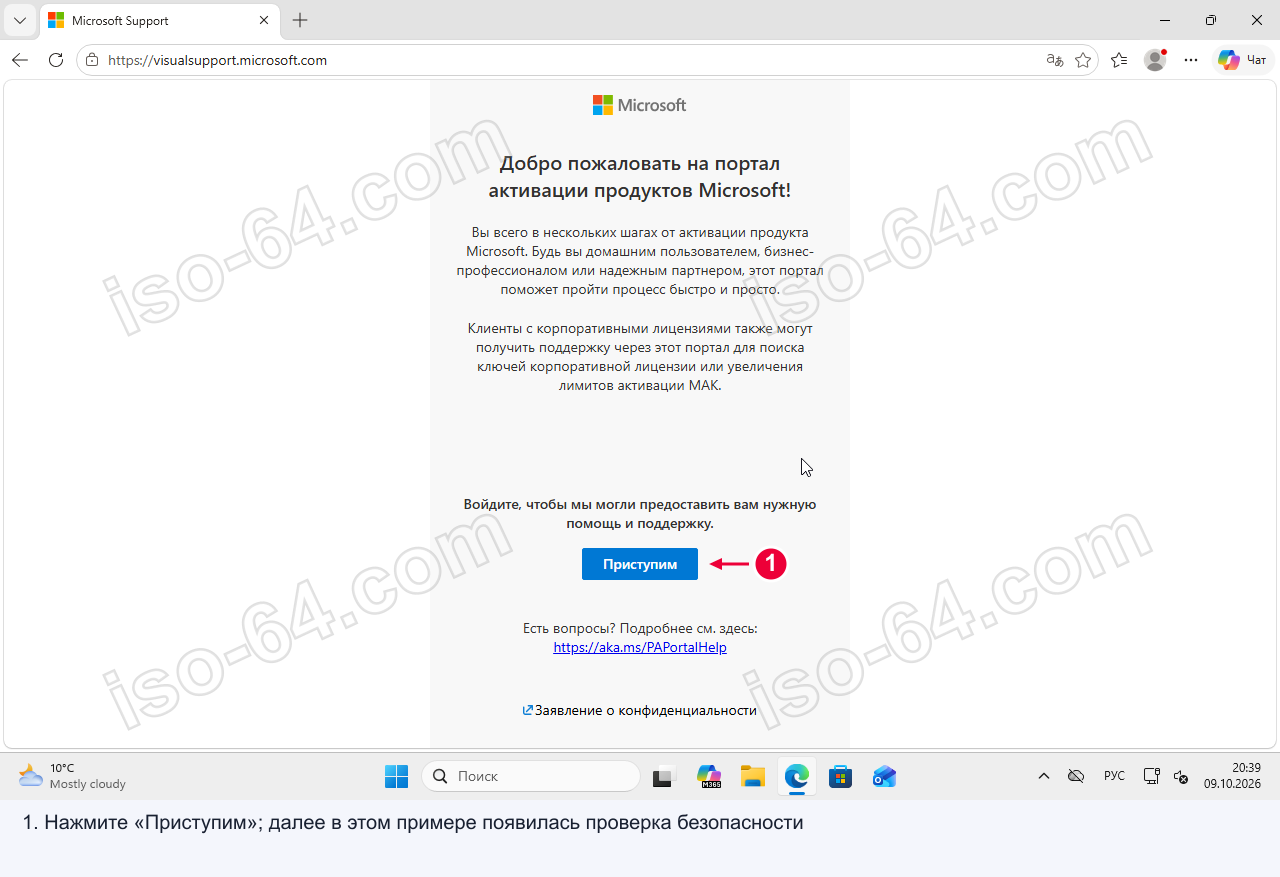
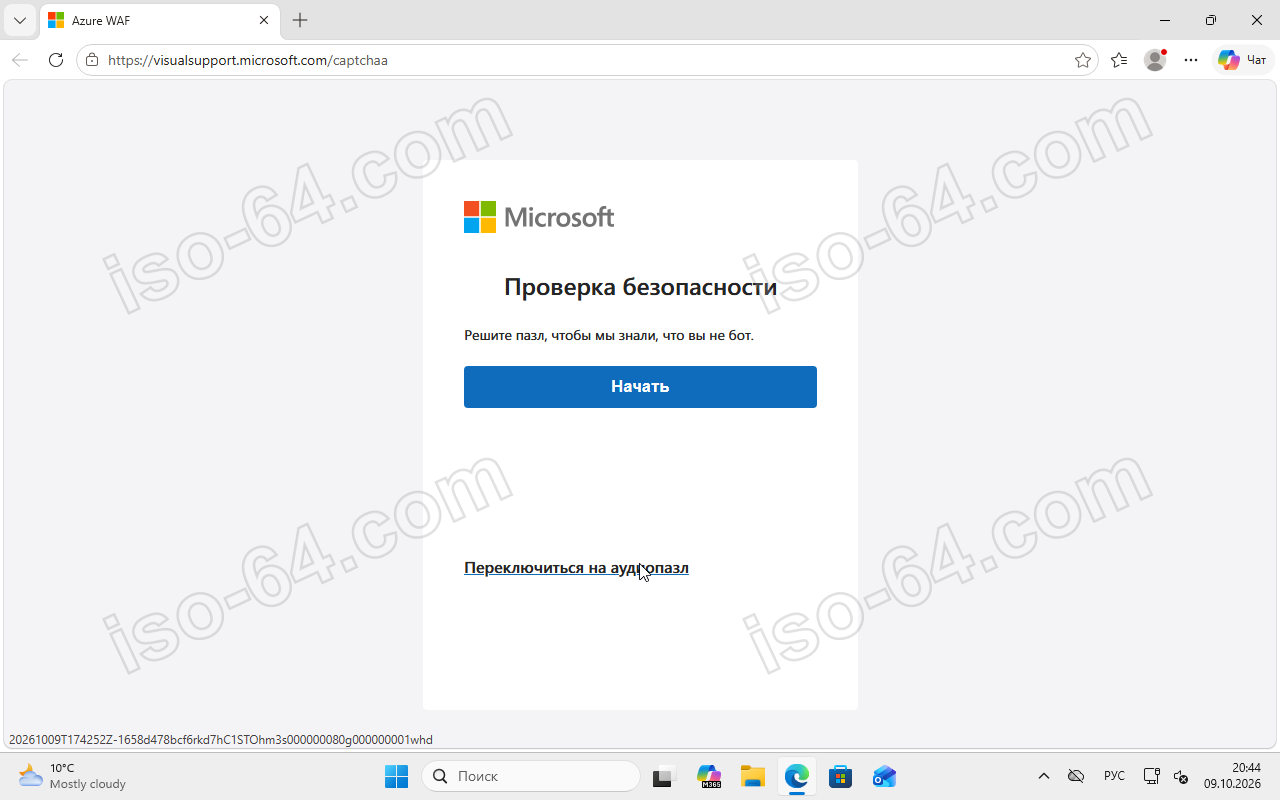
Go to aka.ms/aoh. It lands on visualsupport.microsoft.com; press the welcome page's start button. A security check with its own start button followed; we did not pass it or log in. Going further requires that check plus a supported Microsoft profile.
2
Once logged in, choose the Windows product and paste the Installation ID of your computer. We have no capture of that screen because authentication was skipped.
3
When the portal accepts the number and the licence, it returns a Confirmation ID - keep it. We received none, so there is no frame for this step.
C
Back on the disconnected PC - apply the Confirmation ID
1
In the elevated console put the real code where
<Confirmation ID> stands, dropping the angle brackets, and run slmgr /atp <Confirmation ID>. Our capture shows the template typed but never executed. The reagentc /info output above is from an unrelated recovery-environment check.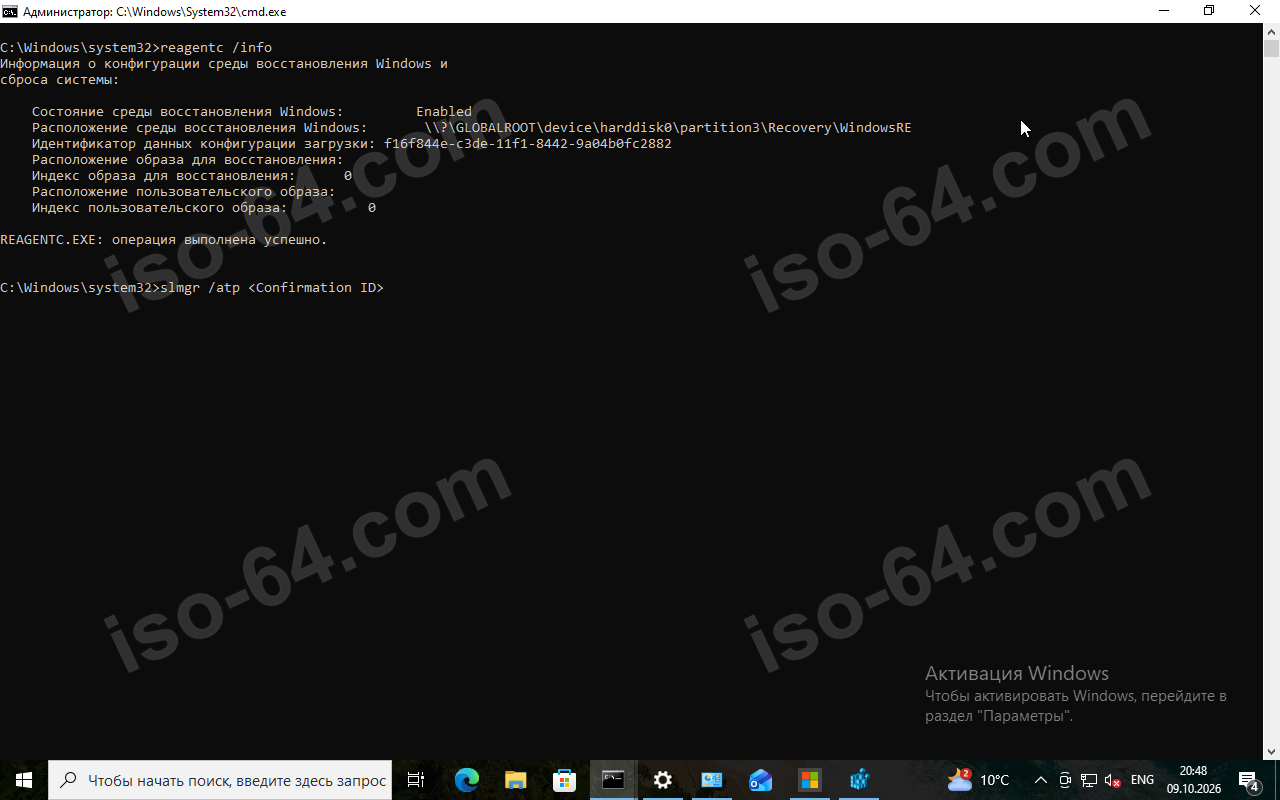
2
Confirm the outcome on the Activation page - under System on 11, under Update & Security on 10. We neither reached nor captured a successful activation.
What works today - summary
Works
The aka.ms/aoh portal
Successor to phone activation for disconnected machines. Needs a second online device and a Microsoft login.
Works
Online key activation
If the PC can be connected after all, ordinary online activation is quicker: on 11 go to System, Activation, then Change next to the product key row; on 10 use the change-key link on the Activation tab of Update & Security.
Works
Microsoft profile attachment
The sturdiest way to keep your licence: a reinstall on the same parts then activates by itself, no key and no portal involved.
Does not work
Phone activation (slui 4)
Microsoft still lists
slui 4 as one way to display the ID, while the automated phone procedure itself has moved to the portal. This guide captured /dti output only; the slui 4 window and an actual call were not tested.Known aka.ms/aoh portal issues
| Issue | Details |
|---|---|
| Microsoft login required | Nothing happens on the portal until you log in - anonymous activation is impossible |
| «Government tenant» error | Microsoft documents a separate login for Azure Government. We did not capture that error; consult the portal's help. |
| OEM licence checks | OEM appears among supported licence types in the documentation. That says nothing about whether a given key is valid or a licence may move. |
| Windows 7 / 8.1 | Microsoft also documents the offline procedure for Windows 7 and 8.1. Code issuance for those systems was not tried in this run. |
| Interface versus documentation | Rely on Microsoft's current help and whatever options the portal shows you. Our captures cover only the public page and the pre-login security check. |
Other activation methods
Offline activation not your case? Pick another method.
Write comment
Comments: 0