Verify an ISO Image with SHA-256 and SHA-1
A step-by-step guide to checking an ISO on Windows and confirming that it is identical to the original using SHA‑256 and SHA-1. A checksum shows whether the file was damaged during the download or altered afterwards.
1
Open PowerShell
Press Win + S and type
PowerShell into the search box (1). Next to the Windows PowerShell result, click “Open” (2). Computing a hash does not need administrator rights as long as you can read the file.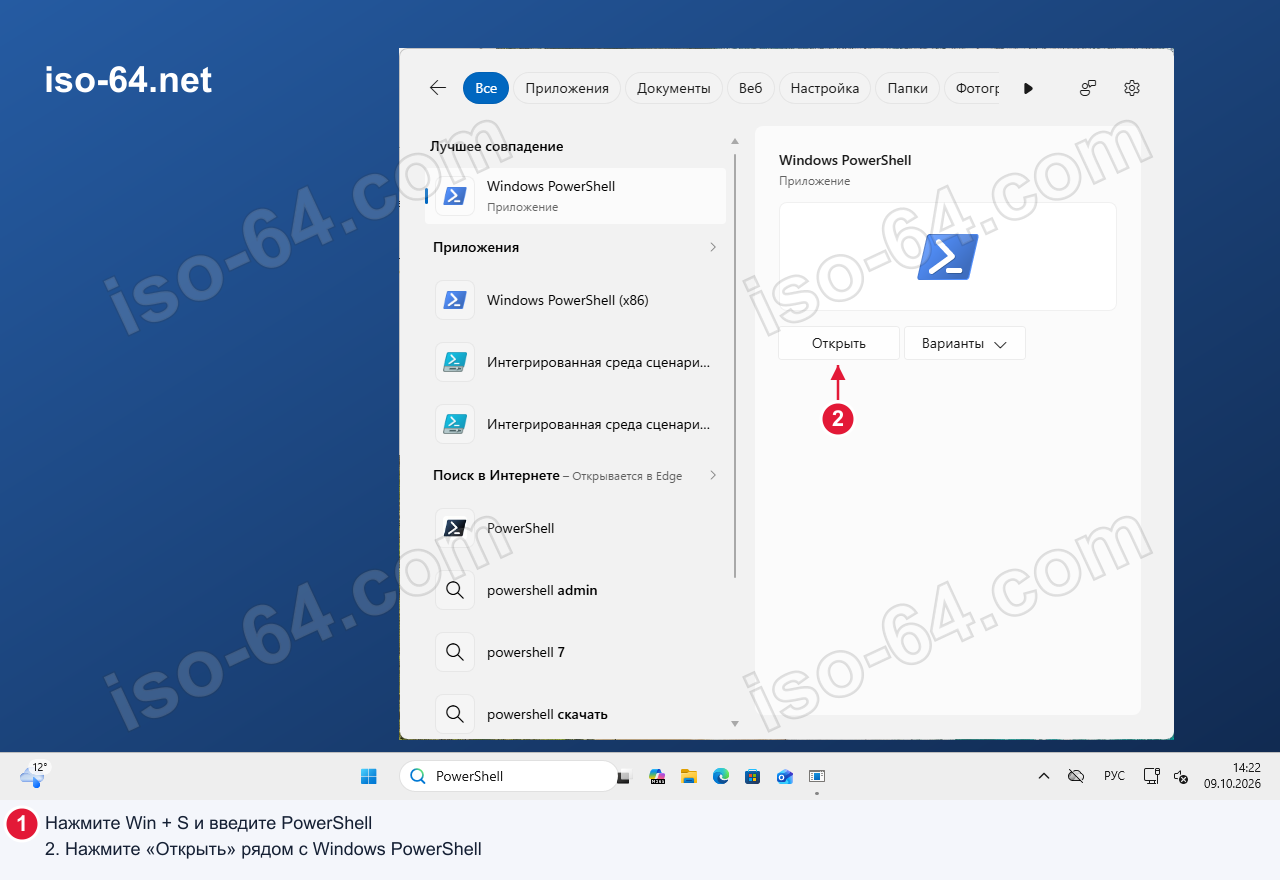
2
Run the SHA-256 check
Copy the command below, paste it, replace the path with the location of your own file and press Enter. The screenshots use
C:\ISO\windows11_26h2_x64.iso; it only illustrates the path, your image can have any name:Get-FileHash "C:\ISO\windows11_26h2_x64.iso" -Algorithm SHA256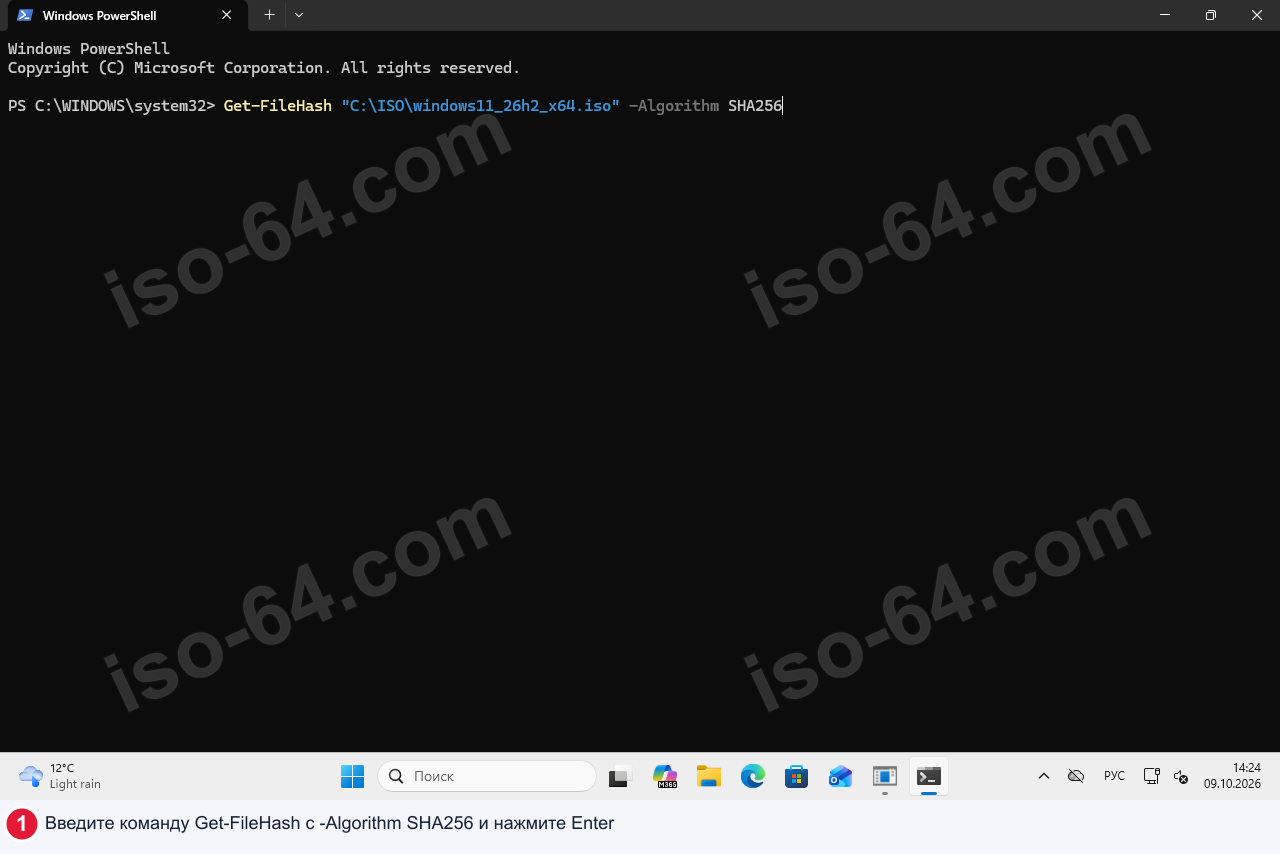
Tip: instead of typing the path by hand, enter
Get-FileHash (with a trailing space) and drag the file from its folder straight into the PowerShell window.
3
Compare the result
1
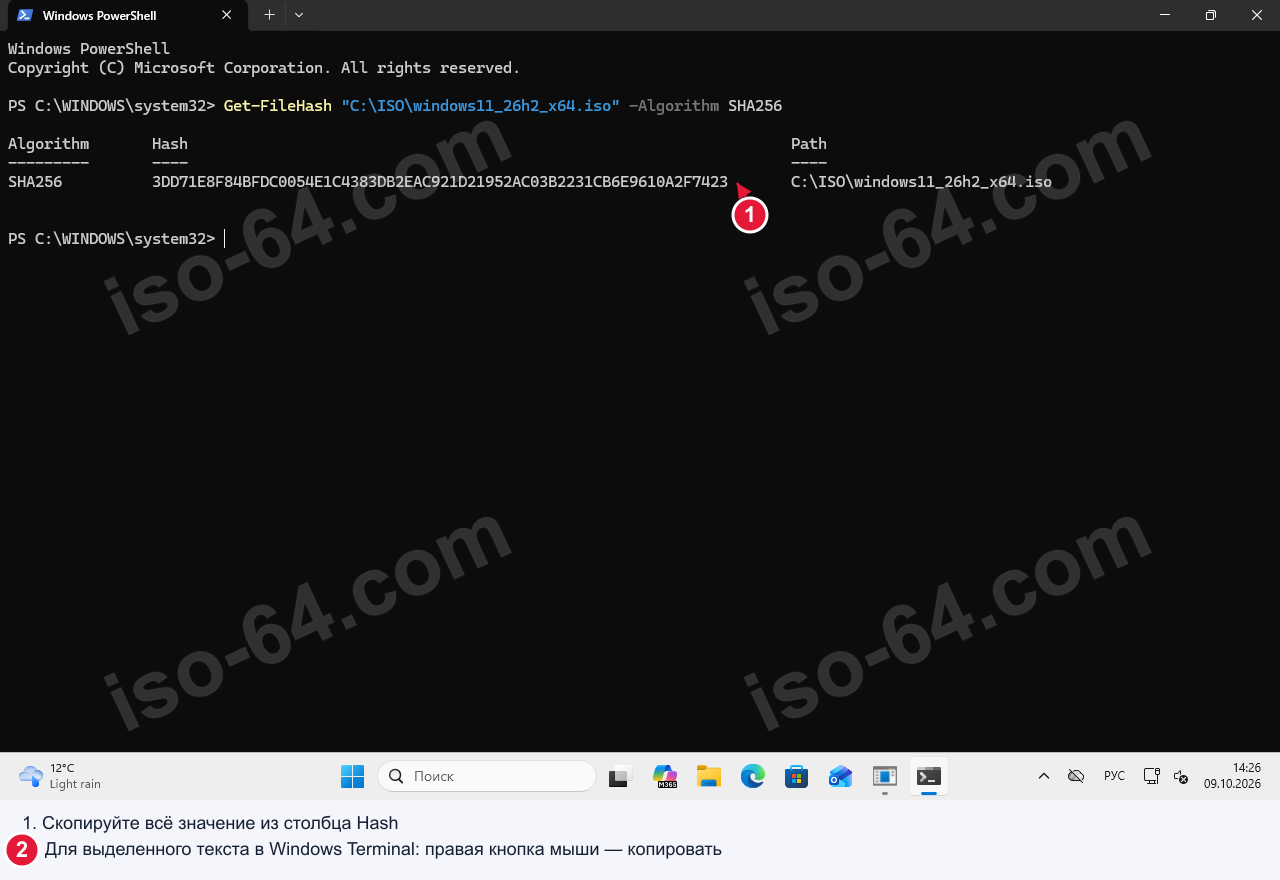
Wait until the calculation finishes; how long it takes depends on the file size and the speed of the drive. Copy the whole value from the Hash column (1), leaving out Algorithm and Path. In Windows Terminal, as shown here, select the text with the mouse and right-click to copy it (2).
2
Match it against the SHA-256 published for exactly this ISO by a source you trust: the version, the language and the image variant all have to be the same. To let PowerShell do the comparison, store the reference value in
$expected and the computed one in $hash, then run $hash -eq $expected. The screenshot shows True, which means the two values are identical. That answer alone does not prove the reference you typed came from Microsoft, so confirm where the reference value comes from separately. Upper and lower case of the letters A–F make no difference in this comparison.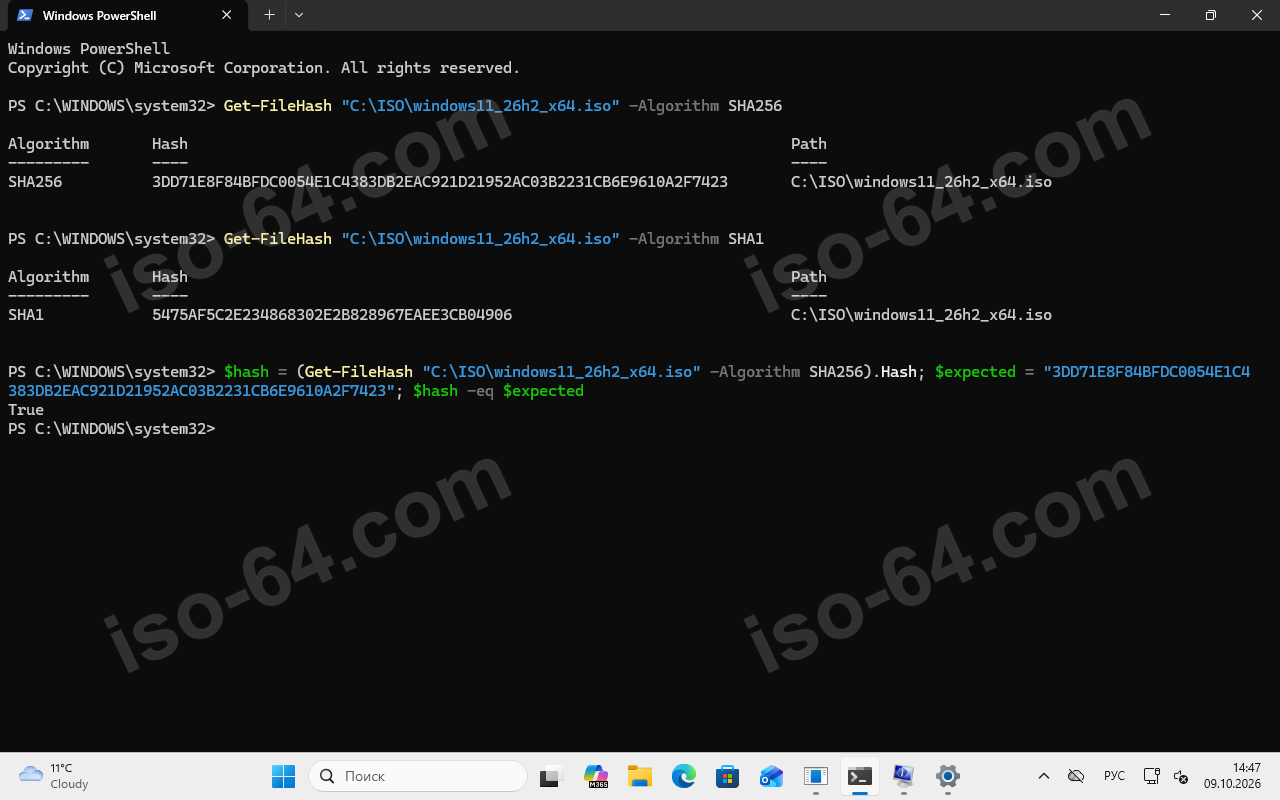
3
If the hash values differ, the file does not match the reference you picked. First make sure you used the right algorithm and the exact ISO variant. In the demonstration below, one byte was appended to a separate copy named
changed-example.iso, and comparing it with the same $expected returned False. The original image was left untouched. If the trusted reference is correct for your file, do not install the mismatching image; download it again from a verified source.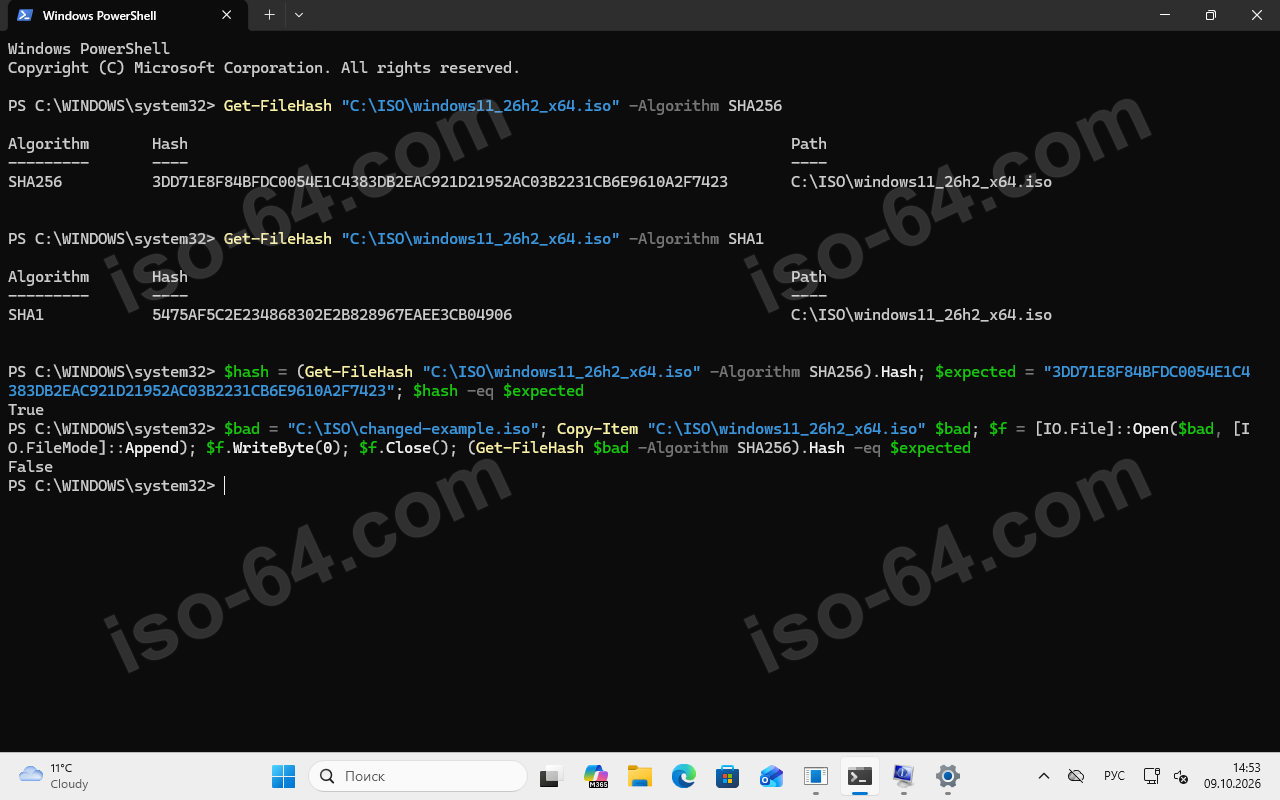
+
Extra check (SHA-1)
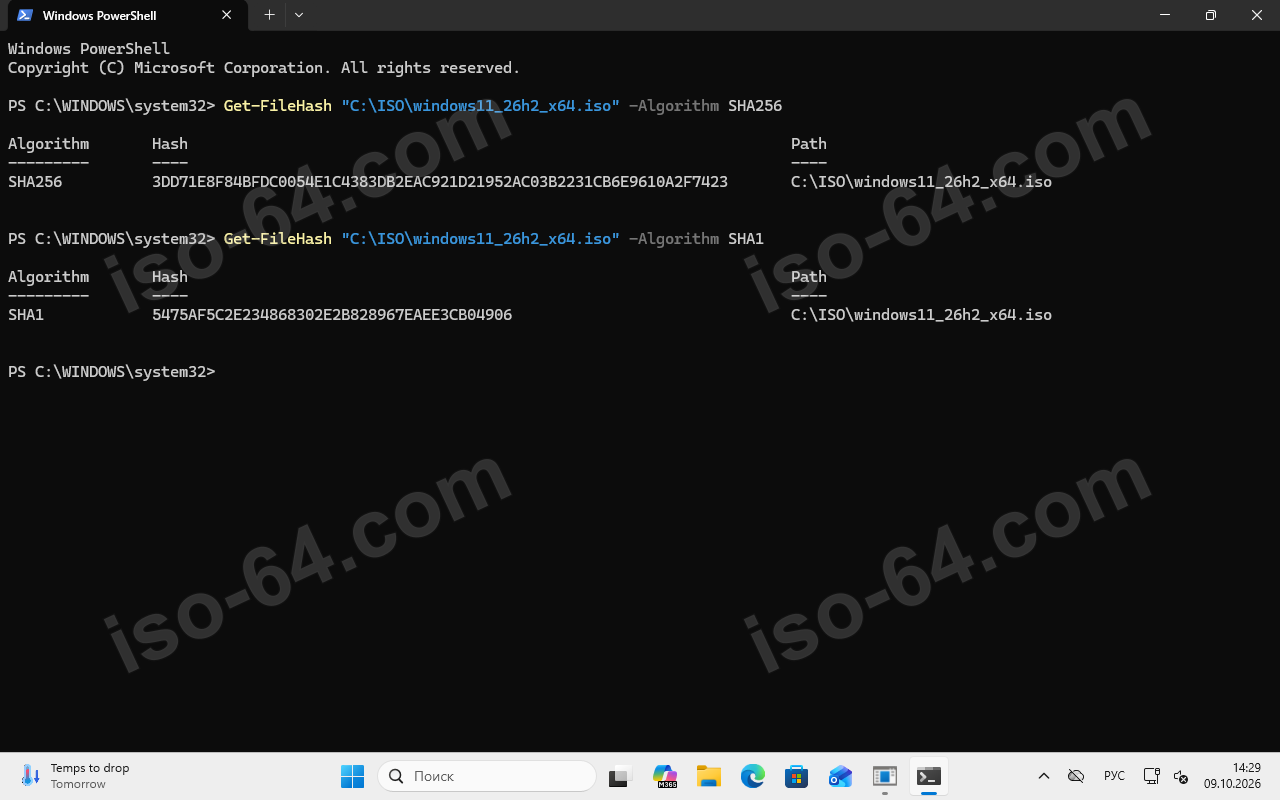
When a source only publishes an older SHA-1 checksum, run the same command with
-Algorithm SHA1 and press Enter. The Algorithm line of the output should then read SHA1; compare the Hash value only with the SHA-1 of the same file. SHA-256 is the better choice for detecting a tampered file:Get-FileHash "C:\ISO\windows11_26h2_x64.iso" -Algorithm SHA1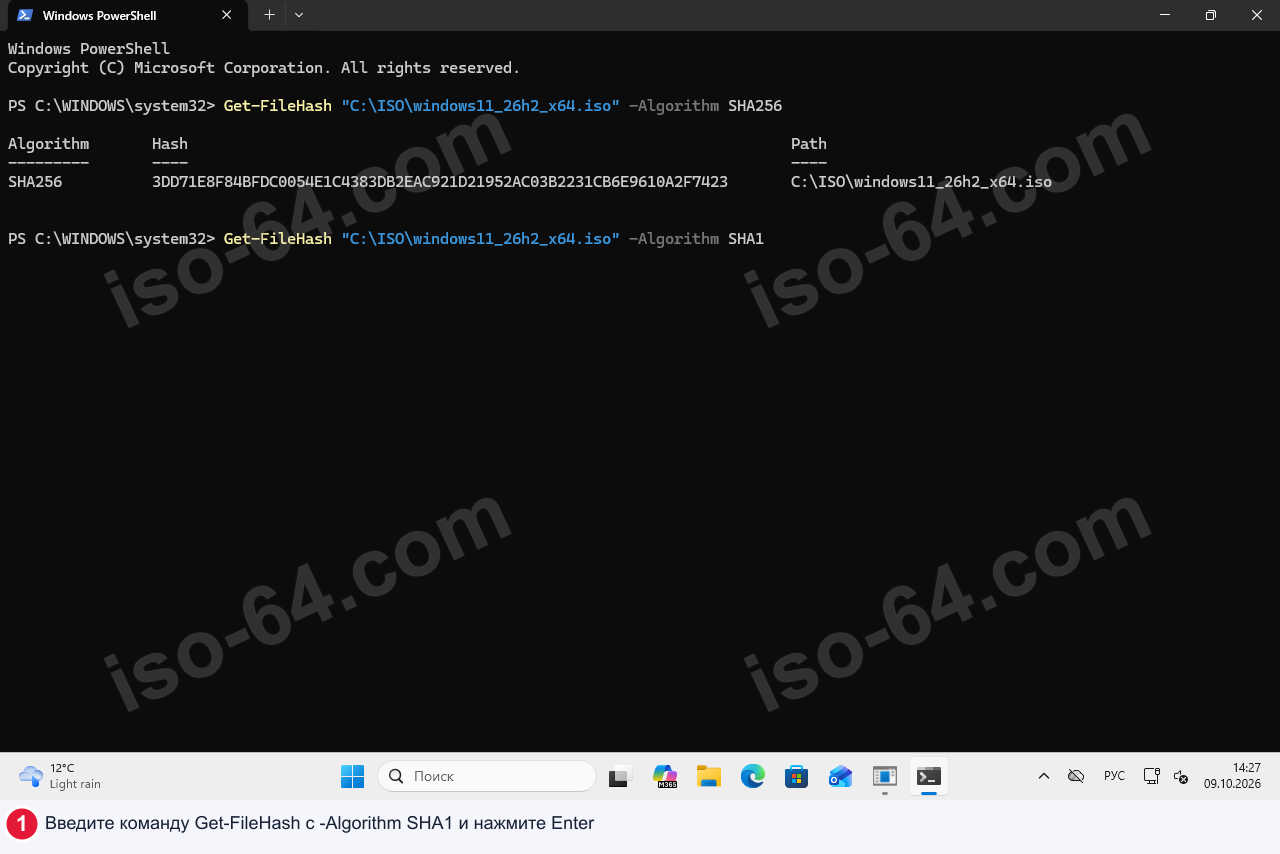
Match
Hashes match
When the SHA-256 equals the trusted reference for the image you wanted, its contents are confirmed. Check the origin of both the image and the reference on their own: a random checksum placed next to a file is no guarantee that the file is safe.
No match
Hashes differ
A mismatch means the contents are not the same as the chosen reference. The cause may be a damaged or modified file, or simply a different ISO variant, so check the language, version and algorithm first. If the trusted reference is right, download the image again from a verified source.
Write comment
Comments: 0