Offline user on Windows 10 and 11: finishing setup without signing in to Microsoft
Current image: Windows 11 26H2 26300.10075. The local-account dialog, the User account and the network settings after sign-in were photographed on English Windows 11 Pro 26H2 build 26300.10075. The Windows 10 examples use the earlier Russian-language lab system.
User setup on Windows 10 and Windows 11, including 26H2. Keep first-run OOBE separate from adding a local user after you have signed in. Old command examples do not prove they work in every new ISO.
Windows 10 - the first-run wizard
In the Windows 10 example below, setup lets you carry on without a network: I don't have internet, then Continue with limited setup. Other editions, builds and setup scenarios may word these links differently or hide them.
Home / Pro
21H1 - 22H2
When the wizard does offer to work offline, click I don't have internet and then Continue with limited setup, as in our captures. On the next screens type a name and pick a password. In some scenarios these links only show up after a delay.
Enterprise / Education
21H1 - 22H2
Company and school devices should be set up the way their administrators intend. Whether an offline user is allowed there is a matter of scenario and policy; our screenshots do not describe every business edition.
Offline users on 26H2
According to Microsoft, personal setup of Home and Pro needs a live connection and an online sign-in. Do not assume that a trick which worked in an older OOBE will work on 26H2 - each installer decides for itself.
After first-run setup you can still create a separate offline user: open Settings, go to Accounts and then Other users, choose Add account, and in the dialog follow I don't have this person's sign-in information to Add a user without a Microsoft account. This adds one more person to an installed system rather than skipping OOBE. Details are in Microsoft's article on managing users.
Windows 11: editions and builds
For first-run personal setup of Home and Pro editions of version 11, the official line is: connection plus online sign-in. Whether an offline path is present depends on the exact build, OOBE updates and the chosen scenario - not merely on the 22H2, 23H2 or 24H2 name. The examples below are single lab runs and promise nothing for another image. In the release notes of Beta build 26120.6772, Microsoft announced that familiar ways of making a local user inside OOBE had been taken out. Those notes concern a preview build and do not show that all stable releases act the same way.
Home
22H2
Builds that still support offline setup show I don't have internet → Continue with limited setup. Some earlier builds accepted Shift+F10 → OOBE\BYPASSNRO; there is no guarantee this command is present or does anything.
23H2
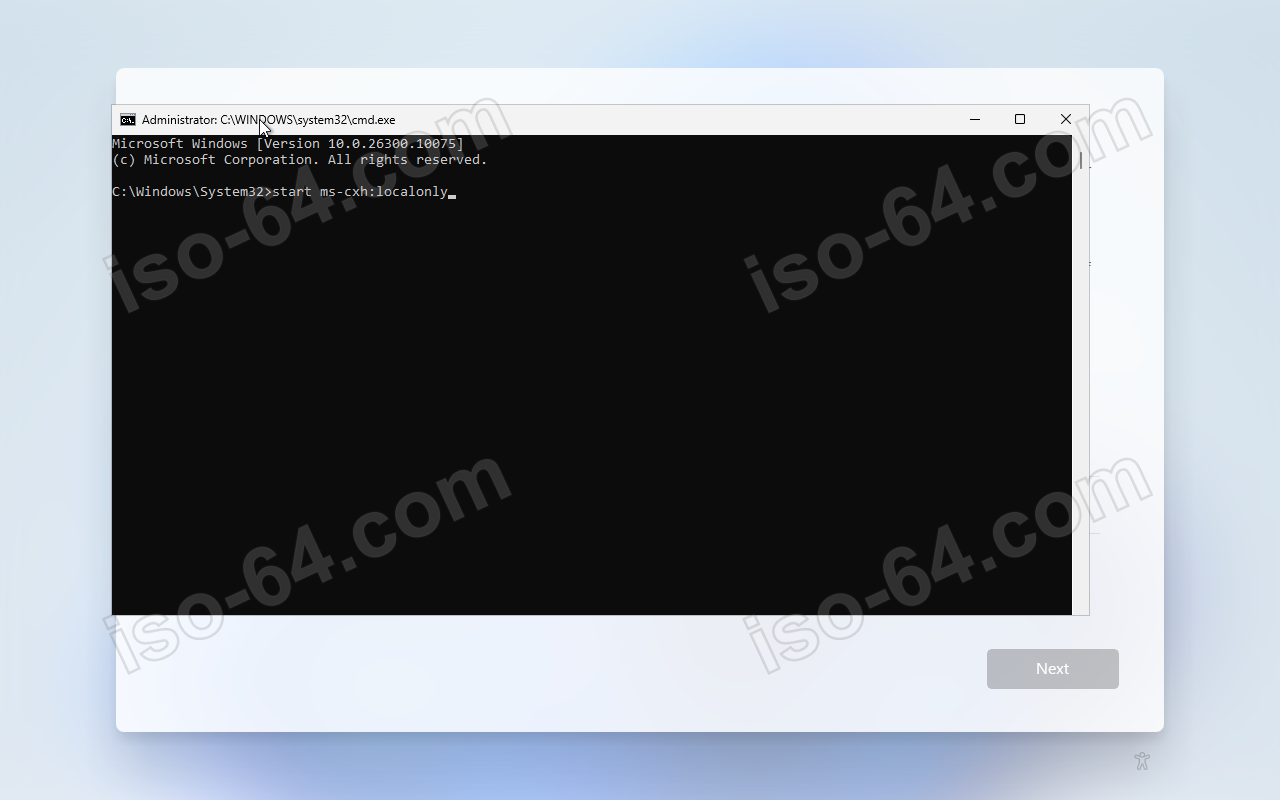
Other builds responded to Shift+F10 → start ms-cxh:localonly. Try it on your own image: a version number alone does not tell you whether the trick is available.
24H2
Neither start ms-cxh:localonly nor OOBE\BYPASSNRO works across all 24H2 updates. The successful form shown below belongs to a recent lab run of Windows 11 Pro 26H2, build 26300.10075.
Pro
22H2
If, once disconnected, the wizard proposes an offline route, use it. Pulling the cable does not by itself make an offline user button show up.
23H2
See what your build actually offers. OOBE\BYPASSNRO may be missing or may fail to open the offline flow.
24H2
Whether start ms-cxh:localonly and the offline buttons exist comes down to build and OOBE scenario. Being disconnected proves nothing about it.
Enterprise / Education
22H2 - 24H2
How you sign in on these editions follows company policy and device management. Use what your administrators allow; we did not capture these editions.
Walkthrough (a typical case)
1
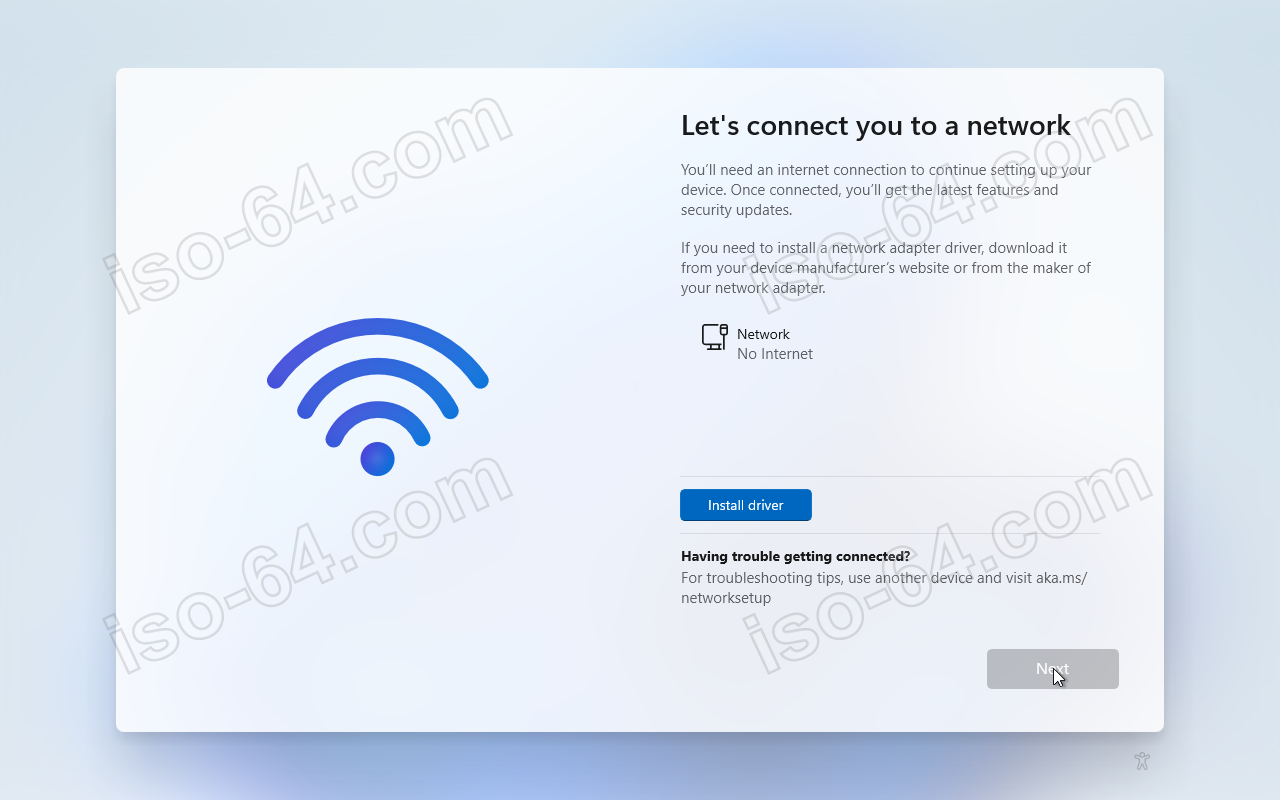
Boot from the installation media and carry on until setup asks about the network or about who will use the PC. The first frame is a separate Windows 11 example of the network screen (Let's connect you to a network): Ethernet shows Not connected, and Next cannot be clicked.
During first-run setup, English Windows 11 asks for a network connection.
2
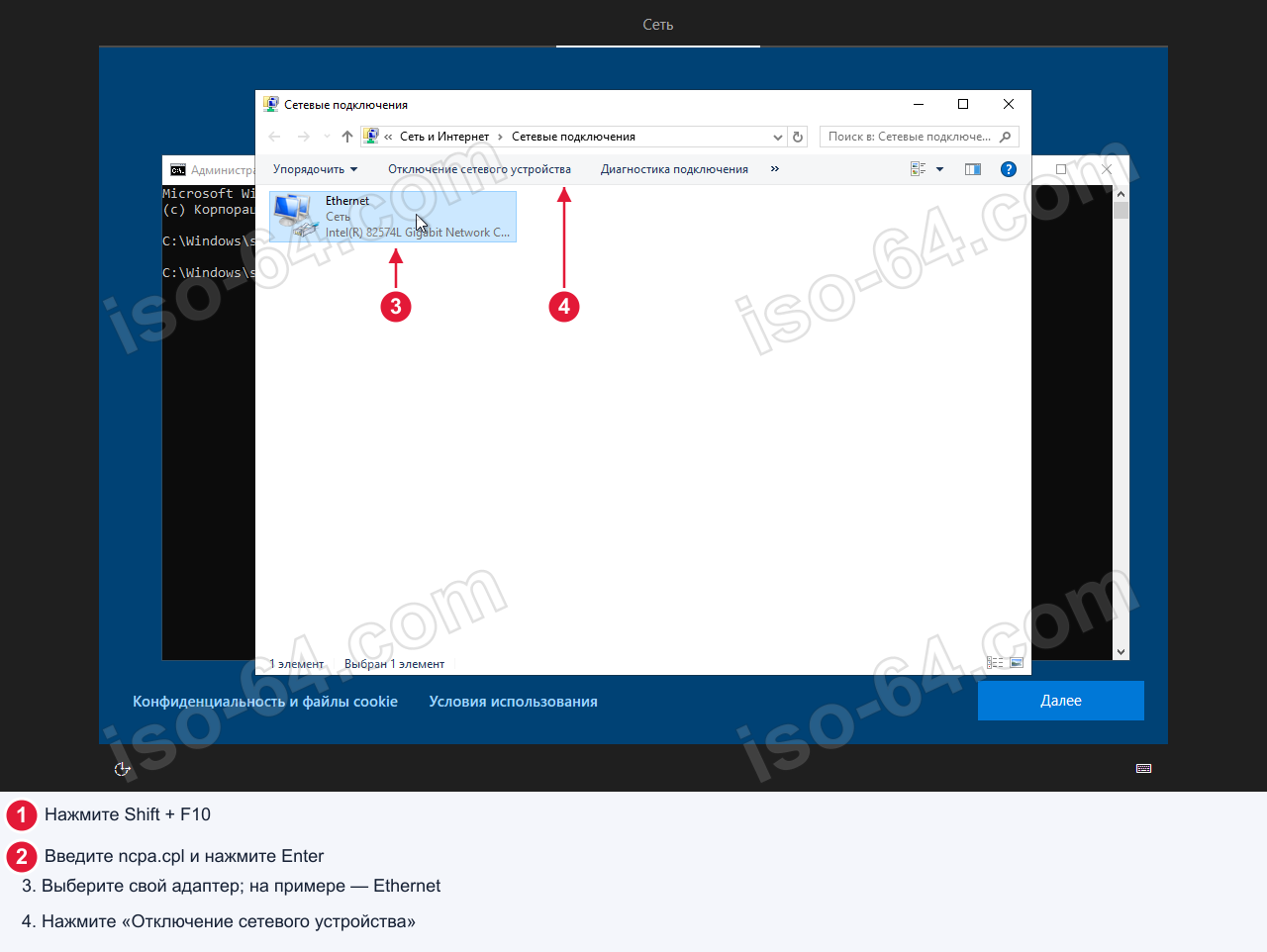
If the method you chose needs the PC to be offline, cut the connection. Windows 10 example: press Shift+F10, type ncpa.cpl, hit Enter. In Network Connections click your adapter - Ethernet in our case - and choose Disable this network device. The capture shows the moment just before disabling; pulling a cable or turning off Wi-Fi is not pictured.
Windows 10 example: Network Connections opened from Shift + F10 with ncpa.cpl, Ethernet highlighted; Disable this network device cuts it off. The adapter is still enabled in this frame.
3
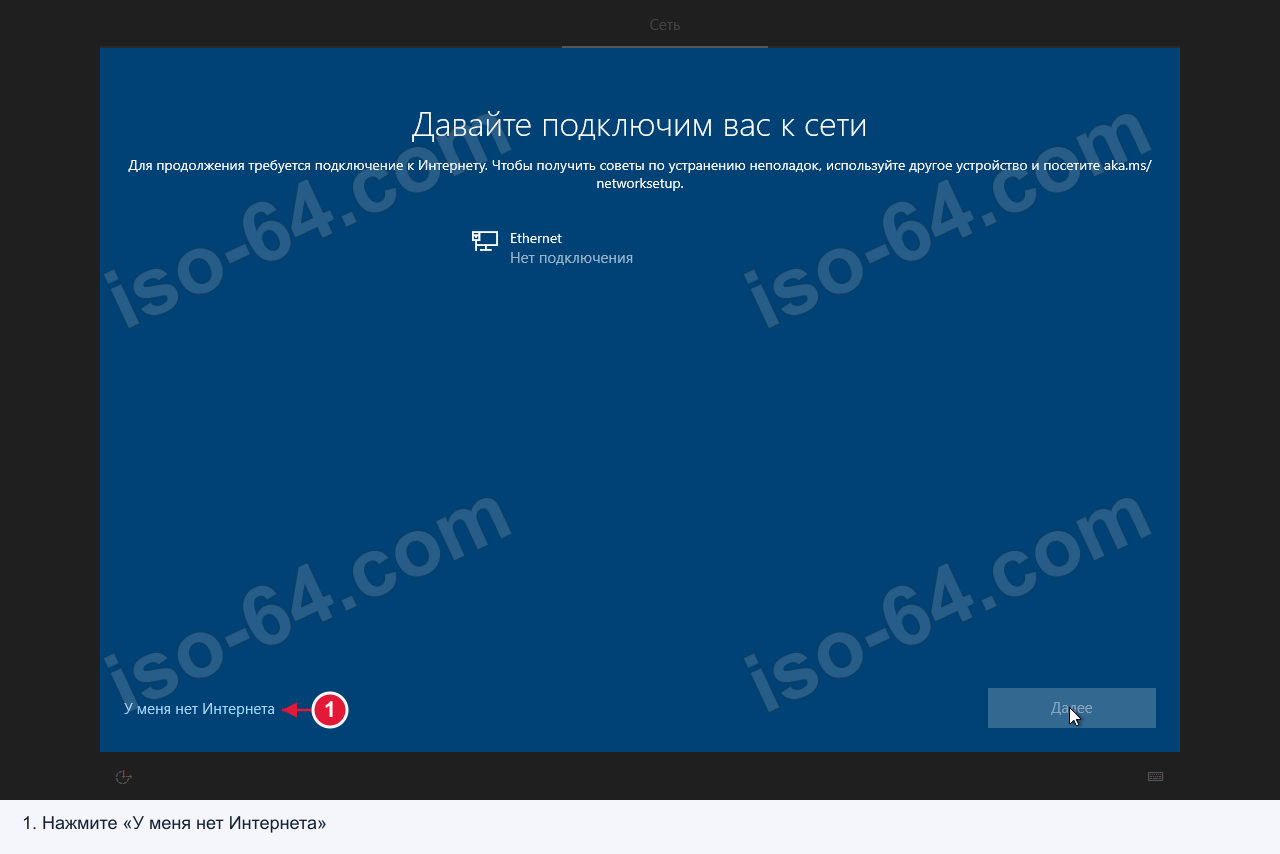
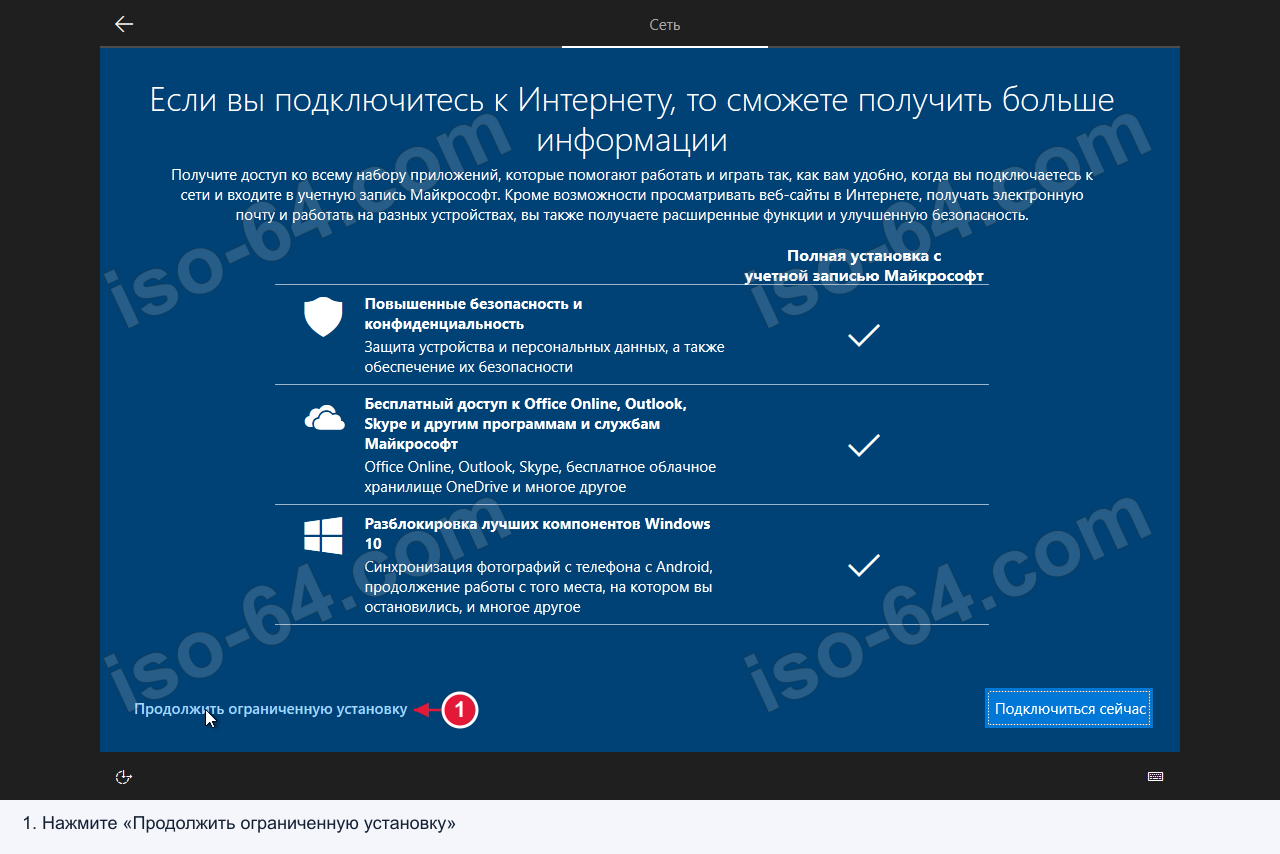
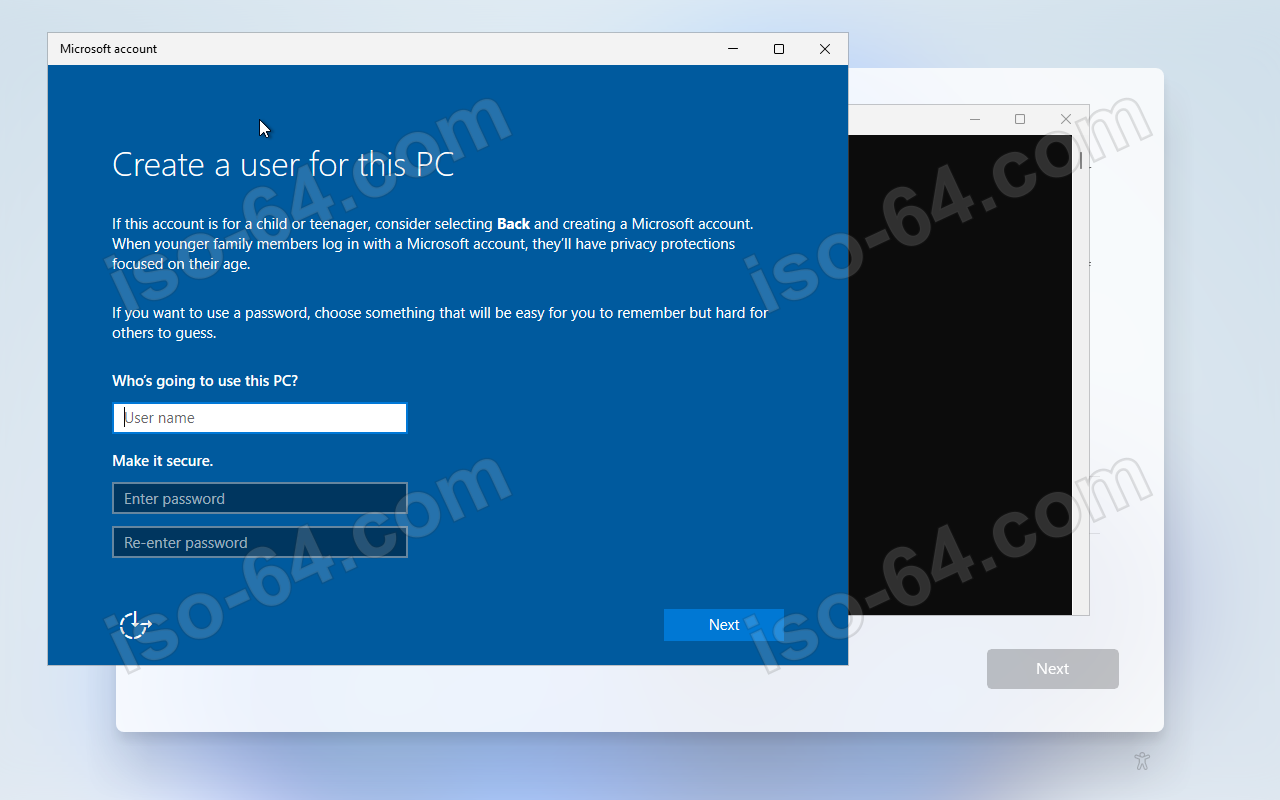
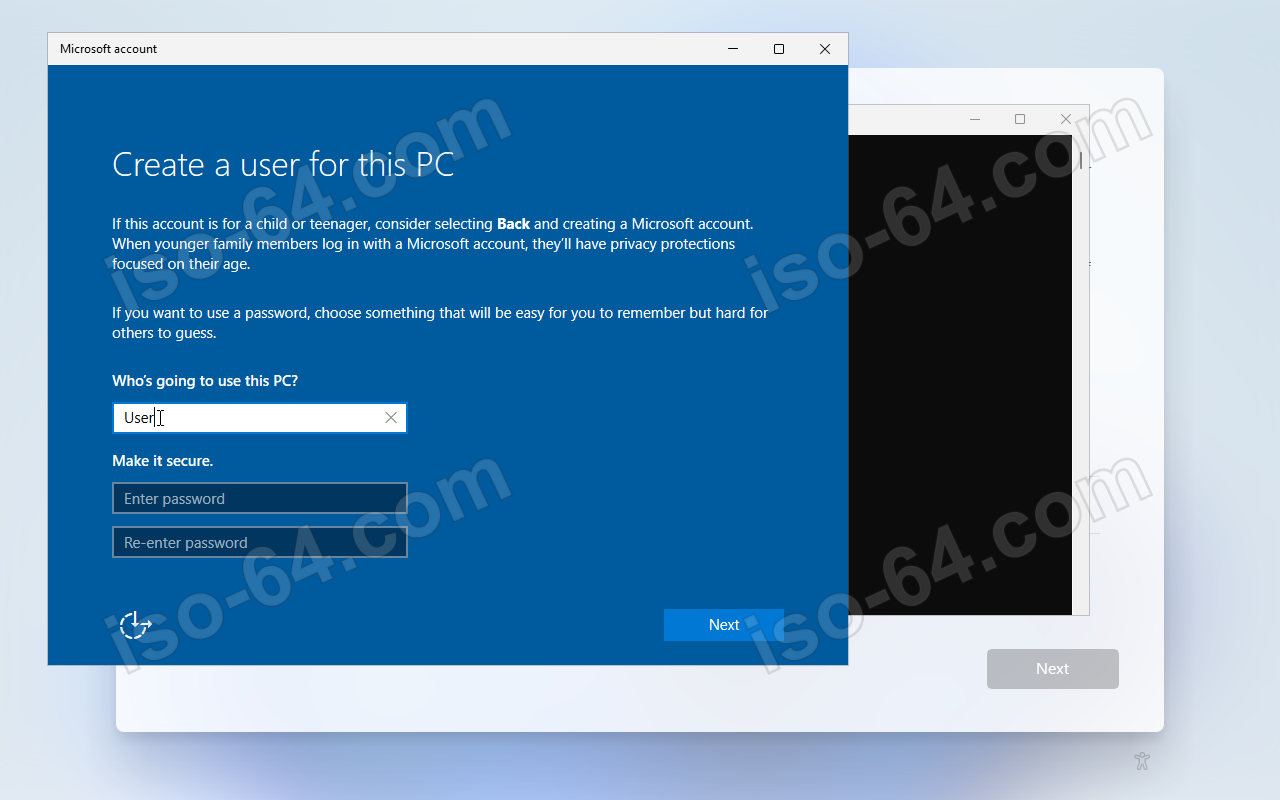
Go with whatever your build provides. Two separate examples follow. Version 10: click I don't have internet, then Continue with limited setup. Lab run on 11 Pro 26H2, build 26300.10075: open the console with Shift+F10, enter start ms-cxh:localonly and confirm; here a form titled Create a user for this PC came up. If the command has no effect on your image, the spelling is not necessarily to blame - use the setup flow that is offered. Later on, an account already in use can be turned into a local one from Settings, as Microsoft describes.
Windows 10 example with Ethernet unplugged: click I don't have internet.Next screen of the Windows 10 example: click Continue with limited setup.The first-run command prompt shows start ms-cxh:localonly before opening the local account form.The local account form displays fields for the user name and password.
4
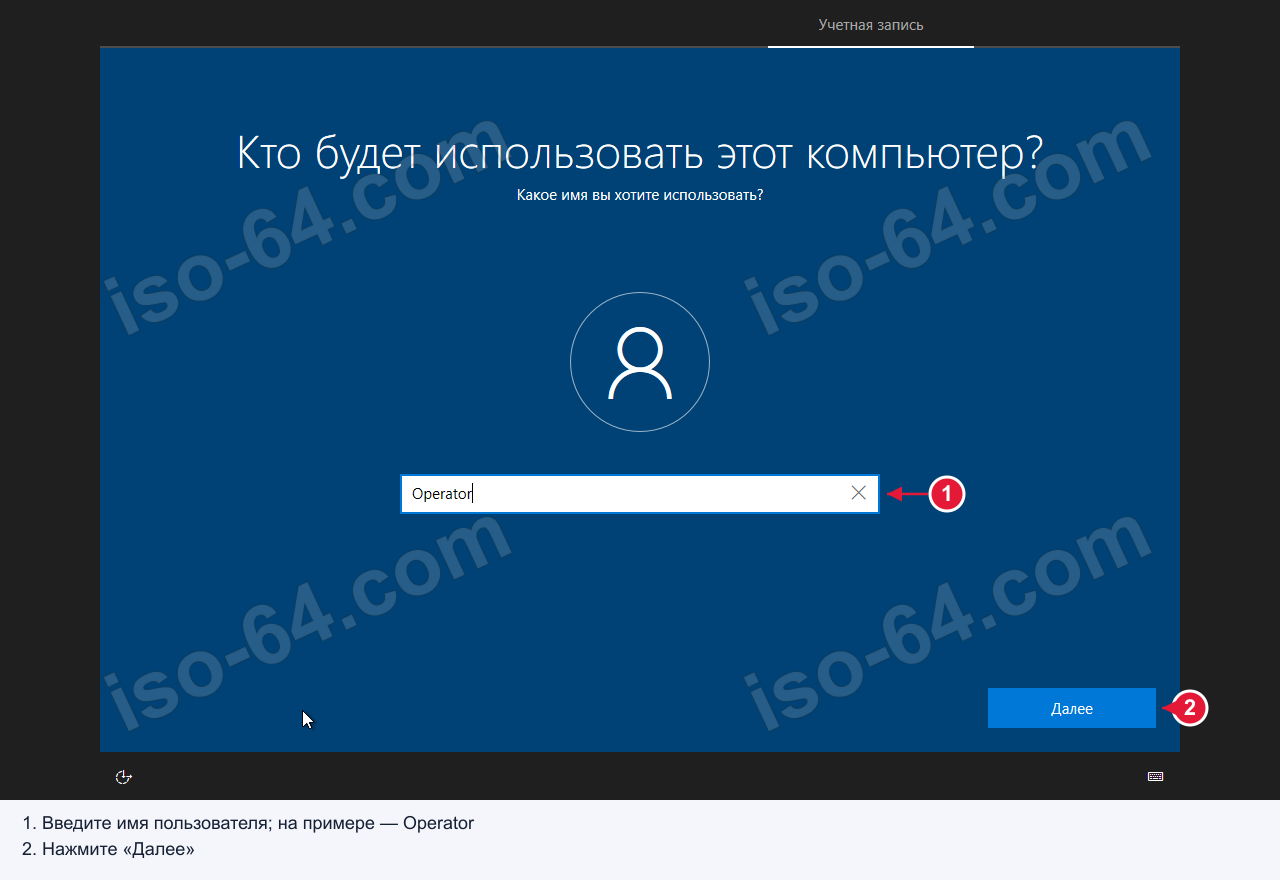
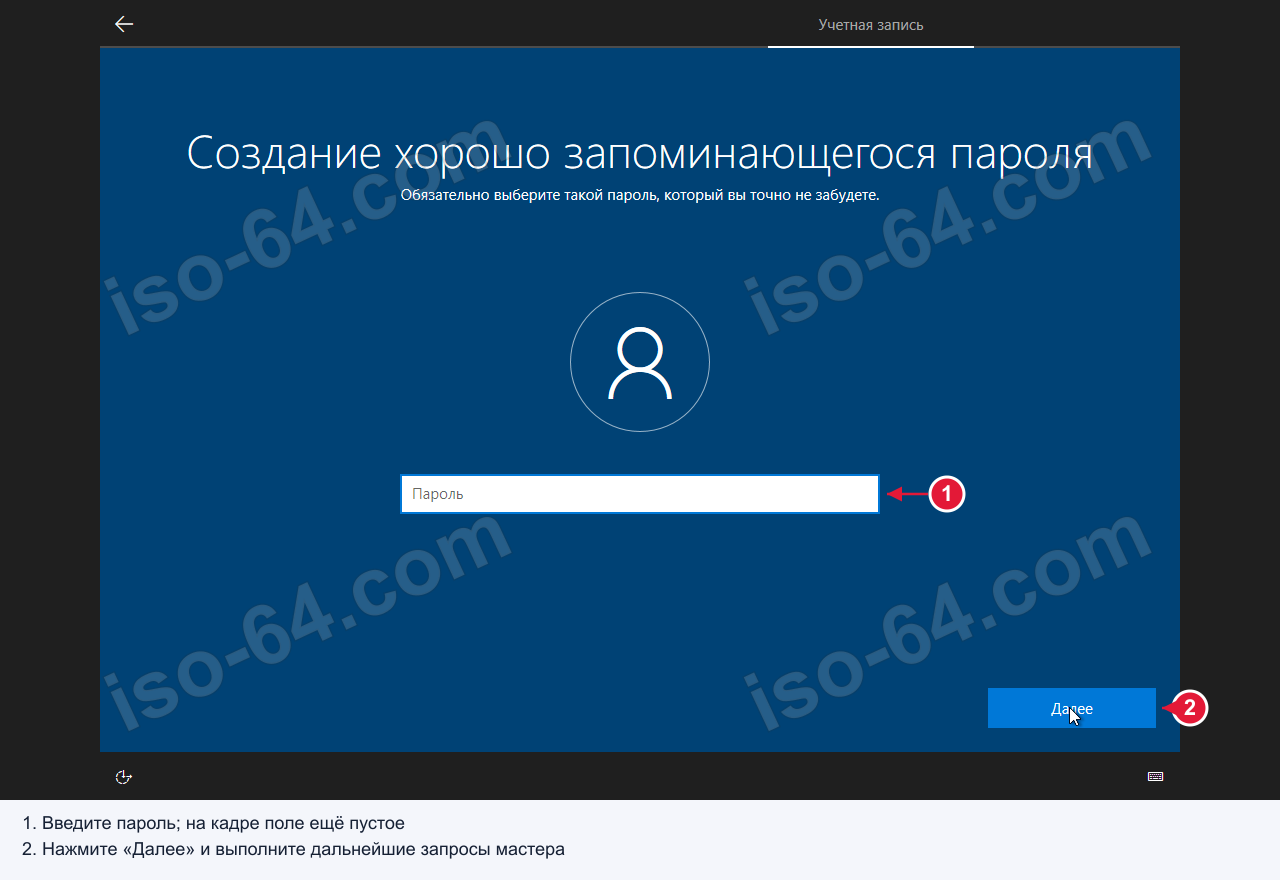
Choose a name and a password. In the version 10 example the screen Who's going to use this device? already holds Operator; click Next and type a password on the following screen. The separate version 11 form asks for the name and the password twice before you press Next. None of the captures have passwords typed yet. Deal with any further questions the wizard asks.
Version 10 example: the who-will-use-this-device screen with Operator typed in; Next follows.Version 10 example continued: the screen asking for a memorable password, field still blank. Typing and confirming it is not pictured.The name User has been entered for the local Windows 11 account.
5
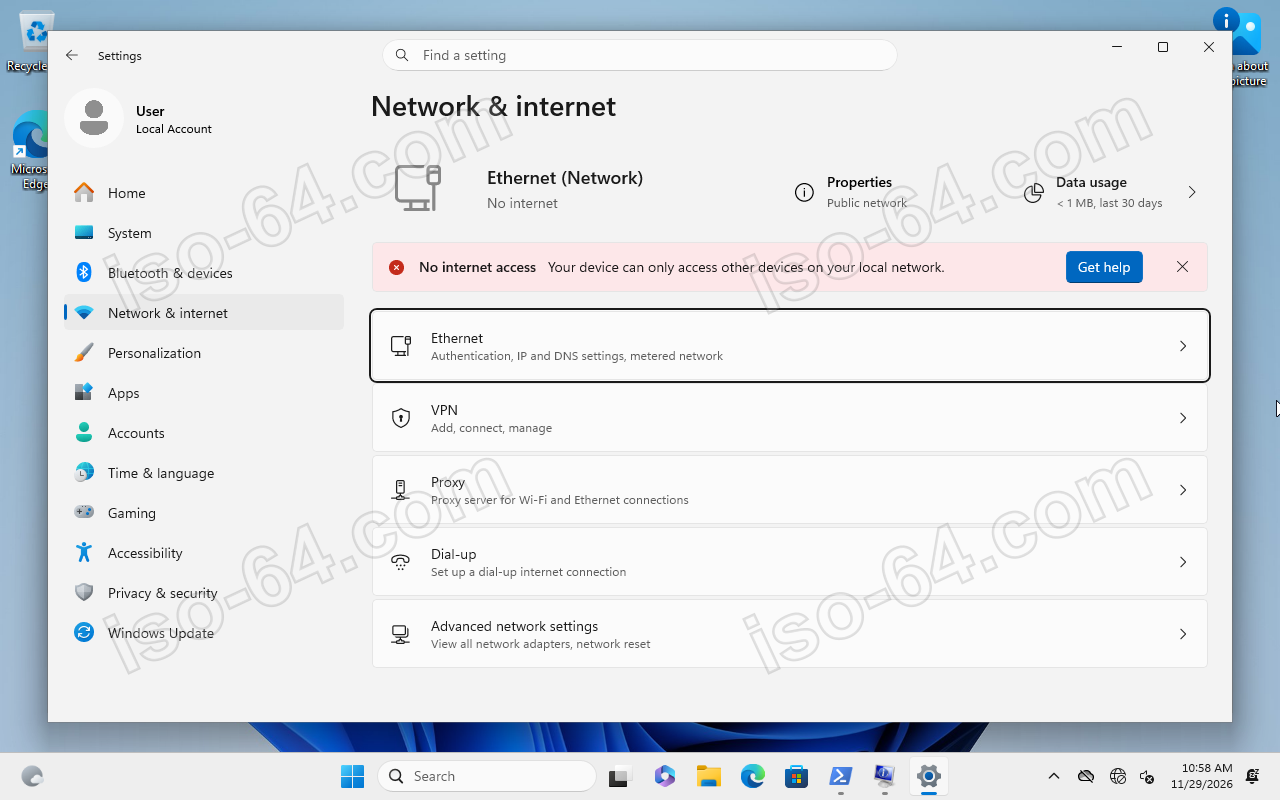
After first-run setup, open Settings → Network & internet. If you disabled the adapter during setup, turn it back on. The screenshot shows network status on the installed Windows 11 Pro system.
Network connection status — Windows 11 Pro 26H2, 26300.10075 (en-US)
Easy
Windows 10 - the example shown
In the offline scenario we recorded: I don't have internet → Continue with limited setup. Whether the links appear depends on the setup environment.
Medium
Windows 11 Pro / Enterprise / Education
Going offline does not guarantee an offline setup option. Compare what you see with your build and your organisation's policies.
Harder
Windows 11 Home 24H2
Whether these two console commands do anything depends on the exact build. Our lab frames do not confirm them for every Home 24H2 install.
Comments: 0